

If you see an error like "The uploaded file exceeds the upload_max_filesize directive" when trying to upload a file to your website, it means the file is larger than your current upload limit allows. This is straightforward to fix.
Why this happens
Your website has a setting that controls the maximum size of files you can upload. When you try to upload an image, document, or video that is larger than this limit, the upload is blocked and you see the error.
How to fix it
You can increase the upload limit directly from your Web60 dashboard.
- Sign in to your Web60 dashboard at app.web60.ie/login.
- Click My Website in the sidebar.
- Go to Advanced Settings, then PHP Settings.
- Find Upload Max Filesize and increase it to 128 MB (or 256 MB if you regularly work with large files).
- Find Post Max Size and set it to the same value or higher.
- Save the changes.
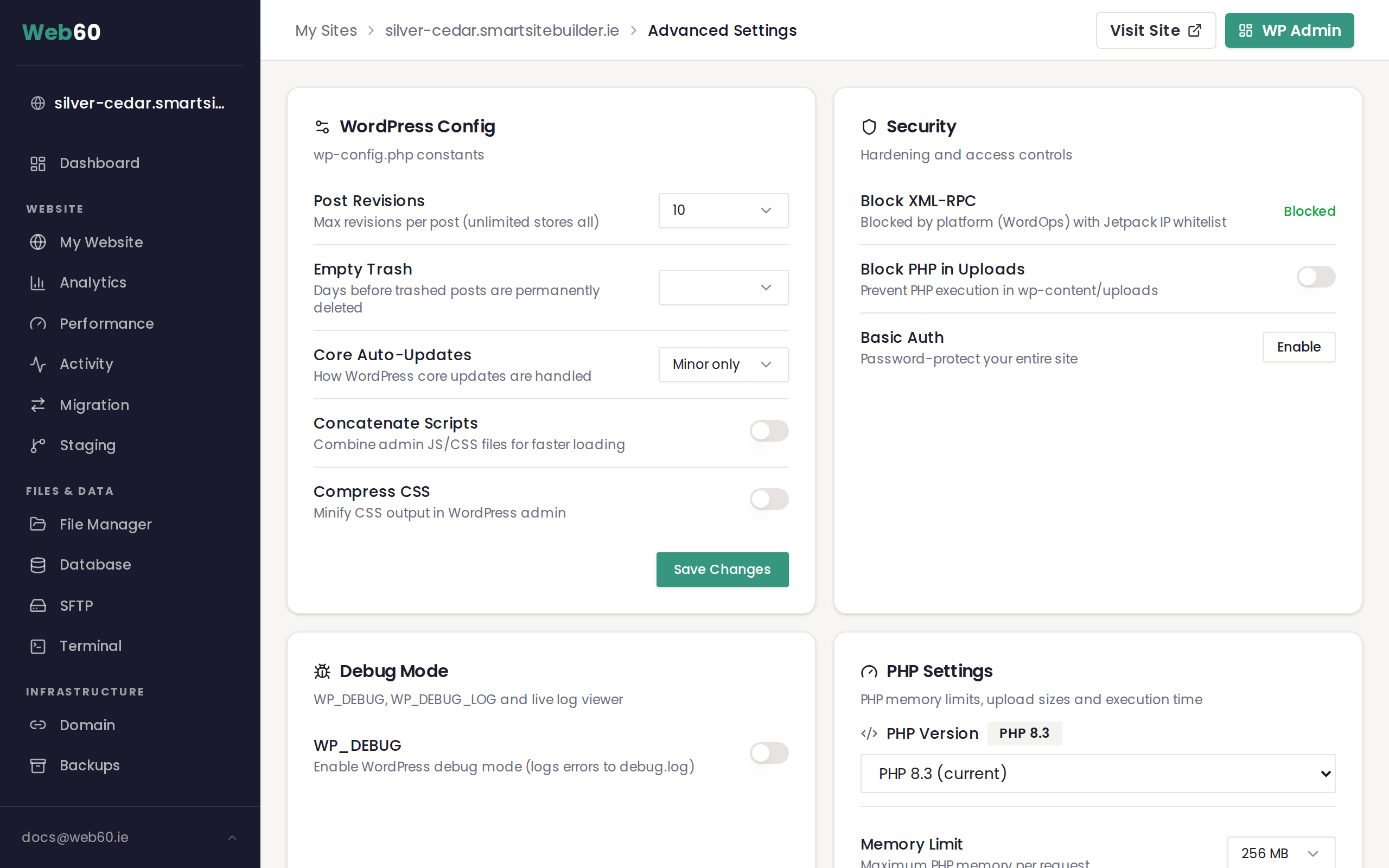
The new limits take effect straight away. Try your upload again.
Important: The Post Max Size must be equal to or larger than the Upload Max Filesize. If only one is increased, uploads may still fail.
For very large videos
If you are trying to upload a video file that is over 100 MB, consider using a video hosting service instead. Services like YouTube or Vimeo are designed to handle large video files and will stream them to your visitors much more efficiently.
You can then embed the video on your website page. This approach:
- Keeps your website storage tidy
- Loads faster for your visitors
- Avoids hitting upload limits entirely
Tips for managing file sizes
- Images: Most website images do not need to be larger than 2 MB. Resize photos before uploading to keep them under this size.
- Documents: PDFs and other documents are usually small enough to upload without any changes.
- Videos: Short clips under 50 MB are fine to upload directly. For anything longer, use a video hosting service.
Need help?
If you are still unable to upload files after increasing the limits, visit our support page and we will help you resolve it.
Frequently asked questions
What is the default upload file size limit?
The default limit varies but is often set to a relatively small value. You can increase it to 128 MB or 256 MB through your Web60 dashboard under Advanced Settings, then PHP Settings.
Do I need to change both Upload Max Filesize and Post Max Size?
Yes. The Post Max Size should be equal to or larger than the Upload Max Filesize. If you set your upload limit to 128 MB, set the Post Max Size to 128 MB or higher as well.
Can I upload very large videos directly to my website?
For videos over 100 MB, we recommend using a dedicated video hosting service like YouTube or Vimeo and embedding the video on your page instead. This keeps your website fast and avoids storage issues.
Last updated: 16 March 2026