

If you see an error message like "Fatal error: Allowed memory size of X bytes exhausted" on your website, it means one of your website's processes tried to use more memory than the current limit allows. This is a common issue and is usually easy to fix.
What causes this error?
Your website runs many processes in the background when a visitor loads a page. Each of these processes uses a small amount of memory. Sometimes a process needs more memory than your current limit allows, and the error appears.
The most common causes are:
- A plugin that uses a lot of resources. Some plugins perform heavy tasks like image resizing, page building, or running reports.
- A large image being processed. If you upload a very large image, your website may run out of memory while creating different sizes of it.
- A complex page with many elements. Pages with dozens of sections, images, and interactive features use more memory to generate.
How to fix it
The quickest fix is to increase your website's memory limit.
- Sign in to your Web60 dashboard at app.web60.ie/login.
- Click My Website in the sidebar.
- Go to Advanced Settings, then PHP Settings.
- Find the Memory Limit option.
- Increase it to 512 MB.
- Save the change.
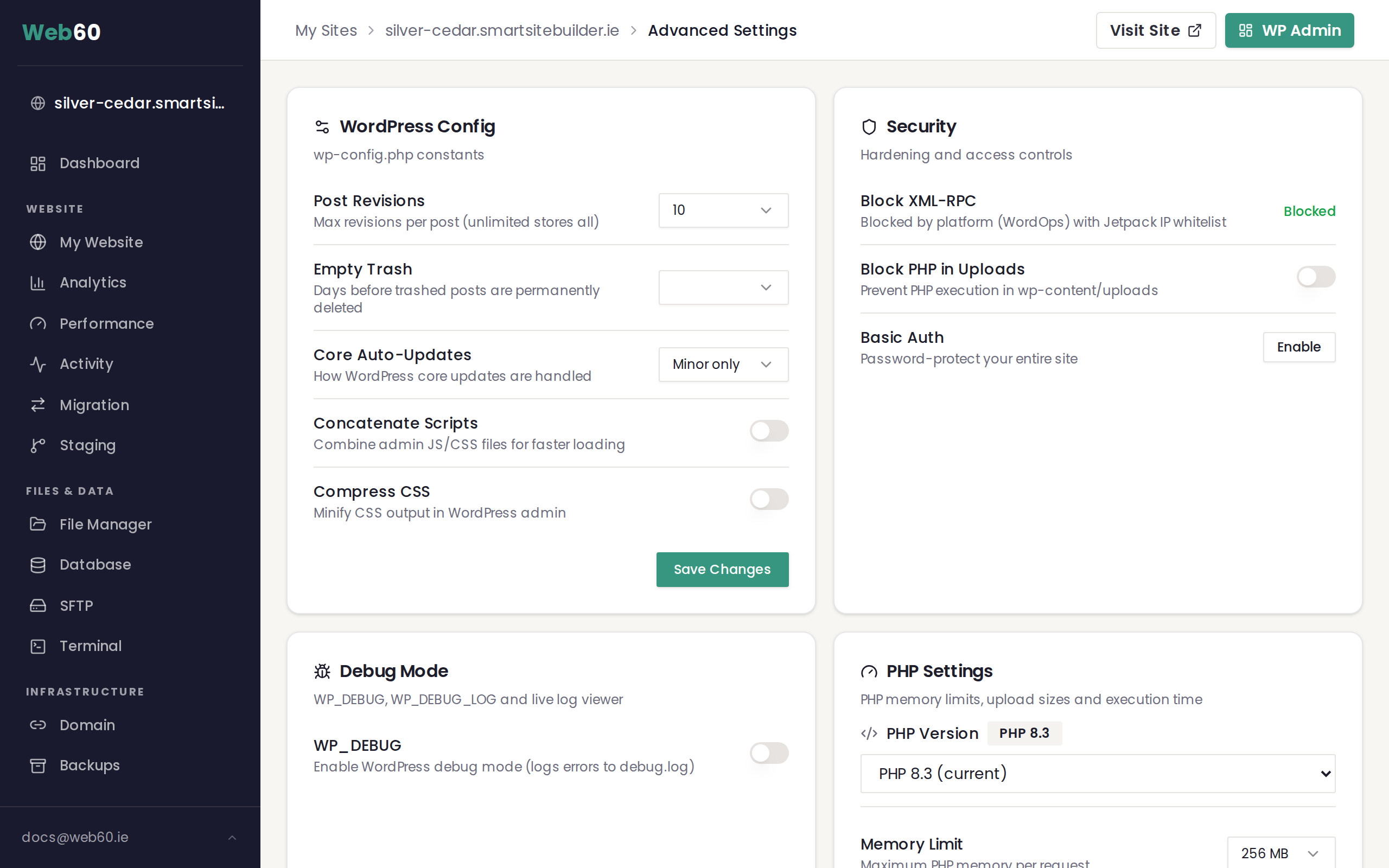
The new limit takes effect straight away. Reload the page on your website that was showing the error to confirm it is fixed.
If the error continues
If increasing the memory limit does not solve the problem, a plugin is likely the cause. To find out which one:
- Think about whether you installed or updated any plugins recently.
- Open your WordPress editor through your Web60 dashboard.
- Go to Plugins and deactivate the most recently added or updated plugin.
- Check your website again.
- If the error is gone, that plugin was the cause. You may need to find an alternative or contact the plugin developer.
- If the error remains, reactivate that plugin and try deactivating the next most recent one.
When to contact support
Get in touch with our support team if:
- The error continues after increasing the memory limit to 512 MB
- You cannot identify which plugin is causing the problem
- The error appears on pages with no special content or plugins
We can investigate your website's resource usage and recommend the best solution.
Need help?
If you are still seeing a memory exhausted error after trying these steps, visit our support page and we will look into it for you.
Frequently asked questions
What does 'Allowed memory size of X bytes exhausted' mean?
This error means your website tried to use more memory than it is currently allowed. It usually happens when a plugin or theme needs more resources than the default limit permits. You can fix it by increasing the memory limit in your Web60 dashboard.
How do I increase my website's memory limit?
Sign in to your Web60 dashboard, go to My Website, then Advanced Settings, then PHP Settings. Find the Memory Limit option and increase it to 512 MB. The change takes effect straight away.
Will increasing the memory limit slow down my website?
No. Increasing the memory limit simply allows your website to use more resources when it needs them. It does not use extra memory all the time. If your website still has issues after increasing the limit, a plugin may be the cause.
Last updated: 16 March 2026