
Your Web60 dashboard includes a set of advanced security controls that help protect your WordPress site from common attacks. These controls live in the Security card inside Advanced Settings and give you quick toggles for two important protections.
This guide walks you through each setting, explains why it matters, and helps you decide what to enable.
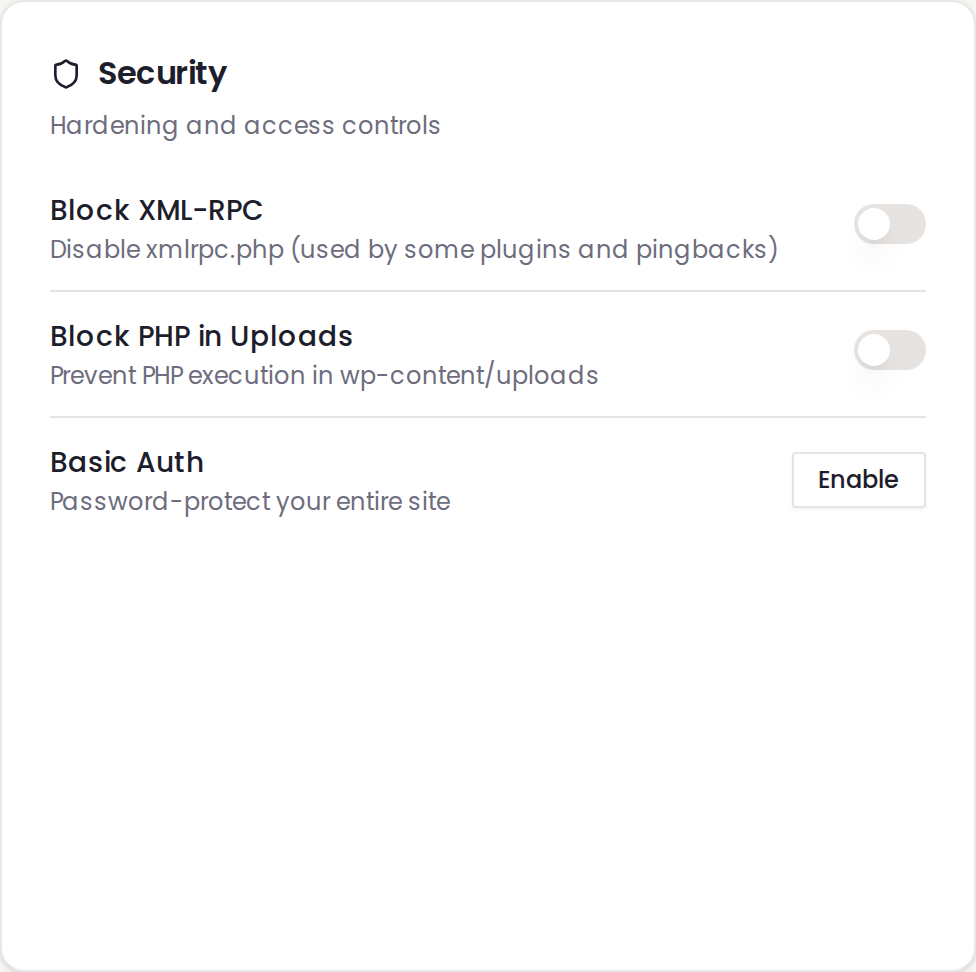
Finding the Security card
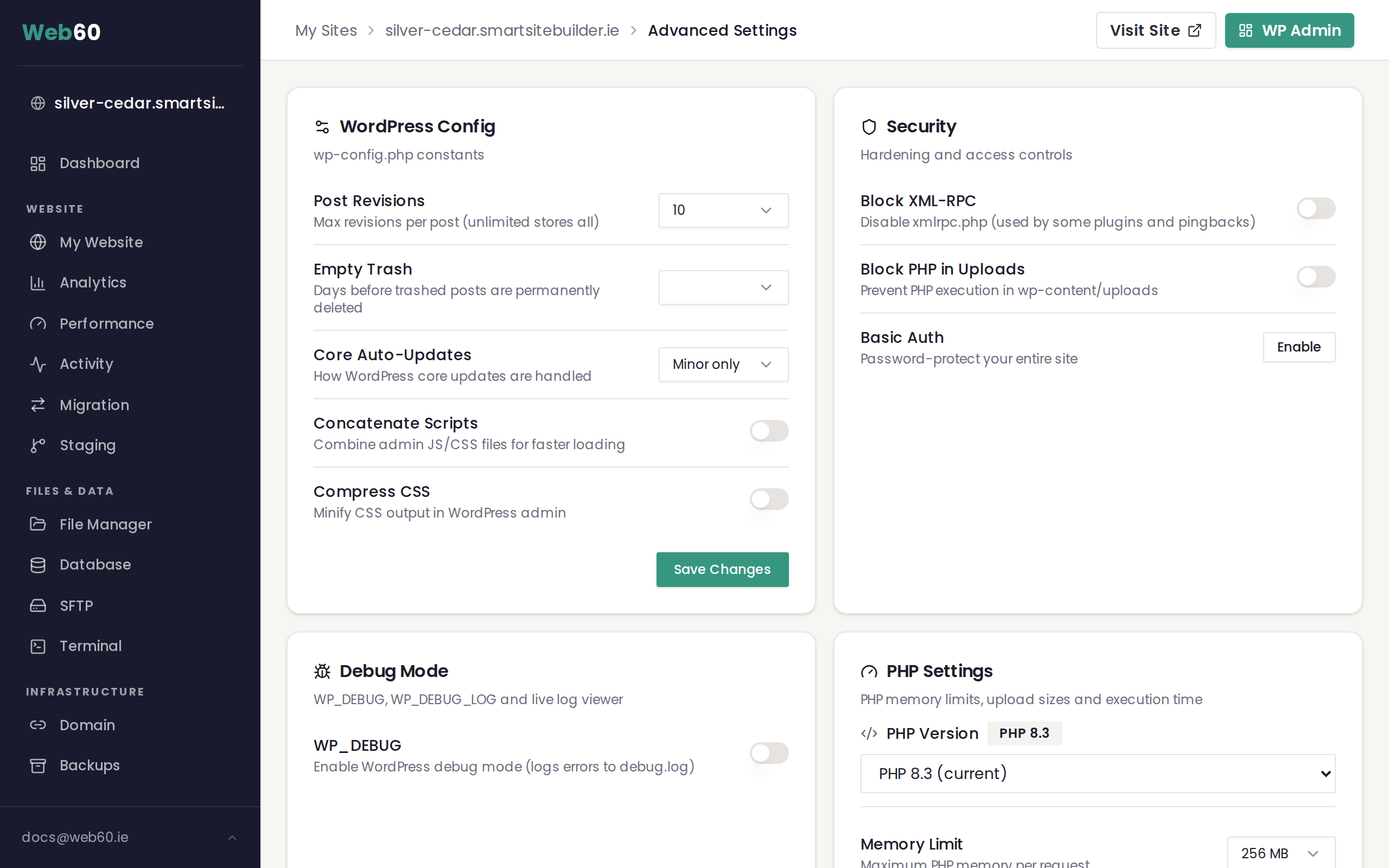
- Log in to your Web60 dashboard.
- Select the website you want to manage.
- Click Advanced Settings in the sidebar.
- Scroll to the Security card.
You will see two toggle switches and a Basic Auth section. Each one is explained below.
Block XML-RPC
XML-RPC is an older method that allows external tools to connect to your WordPress site remotely. While it was once widely used, it has become a popular target for attackers who use it to try thousands of password combinations at once.
What the toggle does: When enabled, all requests to your site's XML-RPC endpoint are blocked with a 403 error. Normal visitors and your WordPress editor are completely unaffected.
Platform-managed sites: If your site's XML-RPC is already managed at the platform level, you will see a label that reads "Blocked by platform" instead of a toggle. This means the setting is locked on, and connections from approved services (such as Jetpack) are automatically allowed through a whitelist. You do not need to change anything.
When to leave it off: Only disable this toggle if you use Jetpack remote management or another tool that specifically requires XML-RPC access. If you are not sure, it is safest to leave it blocked.
For a deeper explanation, see What is XML-RPC and should I block it?.
Block PHP in Uploads
Your WordPress site has an uploads folder where images, documents, and other media files are stored. Attackers sometimes try to upload a disguised file containing harmful code into this folder. If PHP execution is allowed there, that code can run and compromise your entire site.
What the toggle does: When enabled, any attempt to execute PHP code inside the uploads folder is blocked. Your images, PDFs, and other media continue to work normally.
Recommendation: This toggle should always be enabled. There is almost no legitimate reason for PHP files to run inside your uploads folder.
Our recommendation
For the strongest protection, enable both toggles:
- Block XML-RPC closes an outdated remote access method that attackers commonly exploit.
- Block PHP in Uploads prevents harmful code from running inside your media folder.
Together, these two settings eliminate some of the most frequently used attack methods against WordPress sites, with no impact on your day-to-day editing or your visitors' experience.
What about Basic Auth?
The Security card also includes a Basic Auth section for password-protecting your entire site at the browser level. This is covered in a separate guide: How to password-protect your entire website.
Need help?
If you are unsure about any of these settings or need advice on securing your site, our team is happy to assist. Visit our support page to get in touch.
Frequently asked questions
Where do I find the Security card?
Open your Web60 dashboard, select your website, and click Advanced Settings. The Security card is listed alongside other advanced options on that page.
Should I turn on both security toggles?
Yes. For the vast majority of websites, both Block XML-RPC and Block PHP in Uploads should be enabled. They close two of the most commonly exploited entry points for attackers.
Will blocking XML-RPC break anything on my site?
For most websites, no. The only exception is if you rely on Jetpack remote management or a specific integration that connects to your site through XML-RPC. If you are unsure, check with our support team before enabling the toggle.
Last updated: 16 March 2026