

Your website database is where all your content lives. Every page, every blog post, every comment, every user account, and every setting on your website is stored in the database. Most of the time, you never need to think about it because Web60 manages everything for you. But if you ever need direct access, the Database tab in your Web60 dashboard has you covered.
What the database contains
Think of the database as the brain of your website. It stores:
- All your pages and posts, including titles, text, and published dates
- Your media library records, which keep track of every image and file you have uploaded
- User accounts, including names, email addresses, and roles
- Site settings, such as your site title, homepage layout, and plugin configurations
- Comments left by visitors on your posts
Without the database, your website would be an empty shell. The design and images are stored in your files, but the actual words and structure come from the database.
Opening the Database Manager
- Log in to your Web60 dashboard.
- Select the website you want to manage.
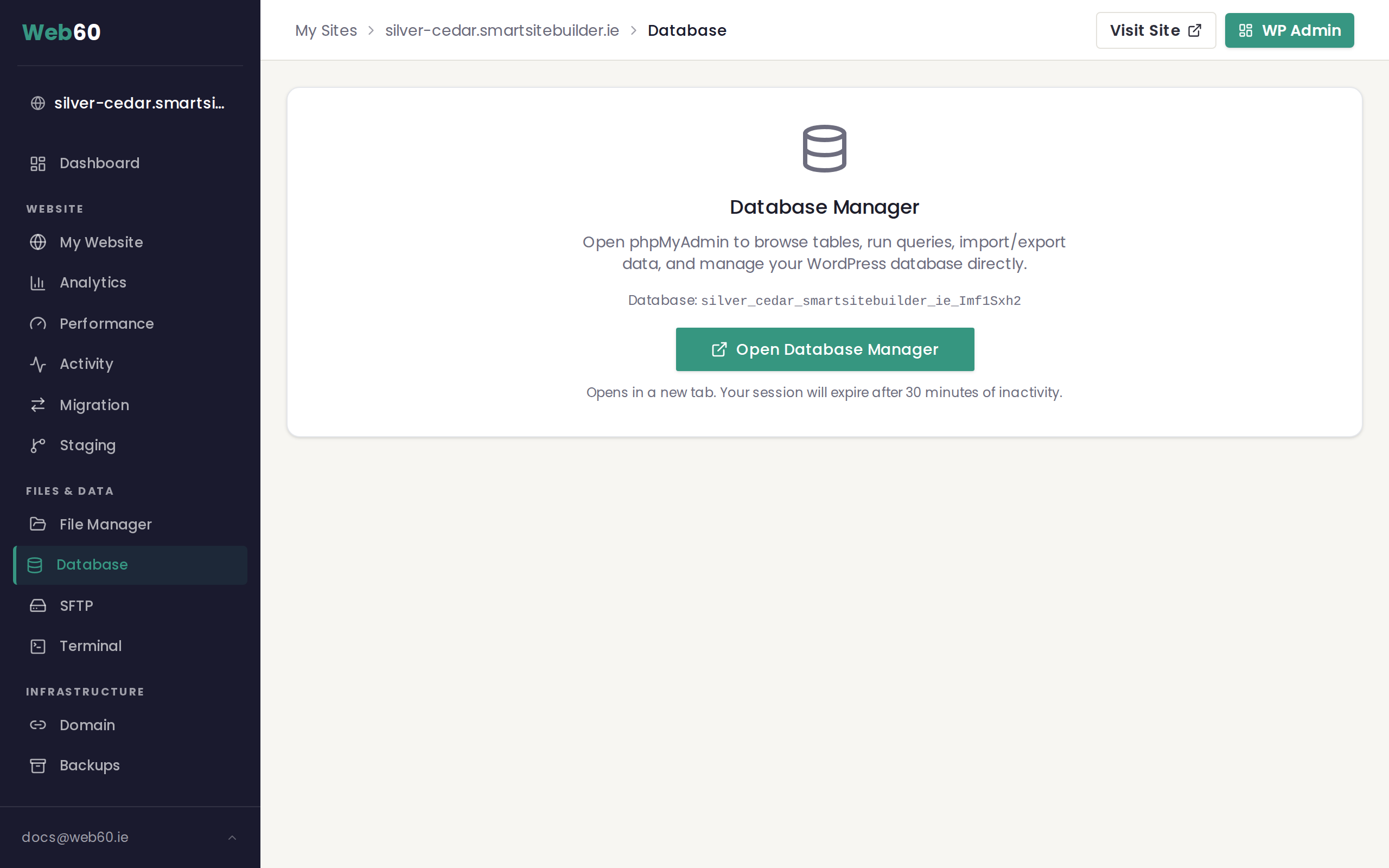
- Click Database in the left sidebar.
- Click the Open Database Manager button.
This opens phpMyAdmin in a new browser tab. Your login is handled automatically, so you do not need to enter a username or password. You will be logged out after 30 minutes of inactivity, so if you step away and come back, you may need to click the button again.
Exporting your database
Exporting creates a downloadable copy of your entire database. This is useful when you are migrating your website to a new host or simply want an extra backup on your own computer.
- Open the Database Manager using the steps above.
- Click the Export tab at the top of phpMyAdmin.
- Leave the format set to the default option.
- Click Go to start the download.
A file will be saved to your computer. Keep this file somewhere safe. If you ever need to restore your website on another server, this file contains everything.
Restoring a database from a backup
Your Web60 dashboard also lets you restore your database from a previous backup snapshot. This is useful if something has gone wrong and you want to roll back to an earlier version.
- Go to the Database tab in your Web60 dashboard.
- Scroll down to Restore Database.
- Select a backup snapshot from the dropdown list.
- Click Restore Database and confirm.
A safety backup of your current database is taken automatically before the restore begins. Your site will be briefly unavailable while the restore is in progress.
When you might need database access
- Migrating your website to or from another hosting provider
- Debugging a problem that support has asked you to investigate
- Cleaning up old data such as spam comments or unused plugin tables
- Exporting content for use in another system
Using the database manager
The database manager is an advanced tool for browsing and editing your website's database directly. Most website owners will never need to use it.
You might use it when:
- Searching and replacing text across your entire site (for example, updating a web address after moving)
- Investigating a database error that support has asked you to check
- Cleaning up leftover data after removing a plugin
To access it, go to the Database tab in your Web60 dashboard and click Open Database Manager. You are logged in automatically.
Important warnings before using the database manager:
- Do not edit the database unless you are confident in what you are doing. Changes are immediate and cannot be easily undone.
- Always take a manual backup first using the Backups tab.
- If you are unsure, contact support instead of editing directly.
Exporting your database
You can download a copy of your entire database from the Database tab:
- Click Export Database in the Database tab.
- A file will download containing all your content, settings, and users.
- Keep this file somewhere safe.
This file can be used to restore your site or move it to another host. For a complete site backup that includes both files and the database, use the Backups tab instead.
A word of caution
The database manager is a powerful tool. Editing or deleting the wrong table can break your website. If you are not sure what you are doing, please create a backup first or contact our support team for guidance. Most website owners never need to access the database directly, and that is perfectly fine.
Need help?
If you have questions about your database or need help with a migration, visit our support page and we will be happy to assist.
Frequently asked questions
What is stored in my website database?
Your database contains all of your website content, including pages, posts, comments, user accounts, and site settings. Everything you see on your website is powered by the database working behind the scenes.
Can I break my website by using the database tools?
Yes. The database manager is a powerful tool meant for advanced users. If you edit or delete the wrong information, your website could stop working. Always create a backup before making any changes.
Do I need to use the database tools?
Most people never need to touch the database directly. Web60 handles everything for you automatically. The database tools are there for specific situations like migrating your site or investigating a technical issue.
How do I download a copy of my database?
Open the Database Manager from your Web60 dashboard, then use the Export tab in phpMyAdmin. This will download a file containing all your database information, which you can keep as a backup or use when moving to a new host.
Last updated: 15 March 2026