
Sometimes you need to restrict access to your entire website. You might be building a new site that is not ready for the public, sharing a preview with a client, or running an internal tool that should not be visible to everyone. Basic Auth adds a browser-level password prompt that blocks all access until the correct credentials are entered.
This guide explains how to enable, manage, and disable Basic Auth from your Web60 dashboard.
What Basic Auth does
When Basic Auth is active, anyone who visits your website will see a browser login prompt before any page loads. They must enter a valid username and password to proceed. Without the correct credentials, they cannot view any part of your site.
This protection sits in front of your entire website. It is separate from your WordPress login and applies to every page, image, and file on your site.
When to use it
Basic Auth is useful in several situations:
- Sites under construction. Keep your unfinished site private while you build it.
- Client previews. Share credentials with a client so they can review progress without making the site public.
- Internal tools. Restrict a WordPress site that is only meant for your team.
- Temporary privacy. Hide your site briefly while you make significant changes.
How to enable Basic Auth
- Log in to your Web60 dashboard.
- Select the website you want to protect.
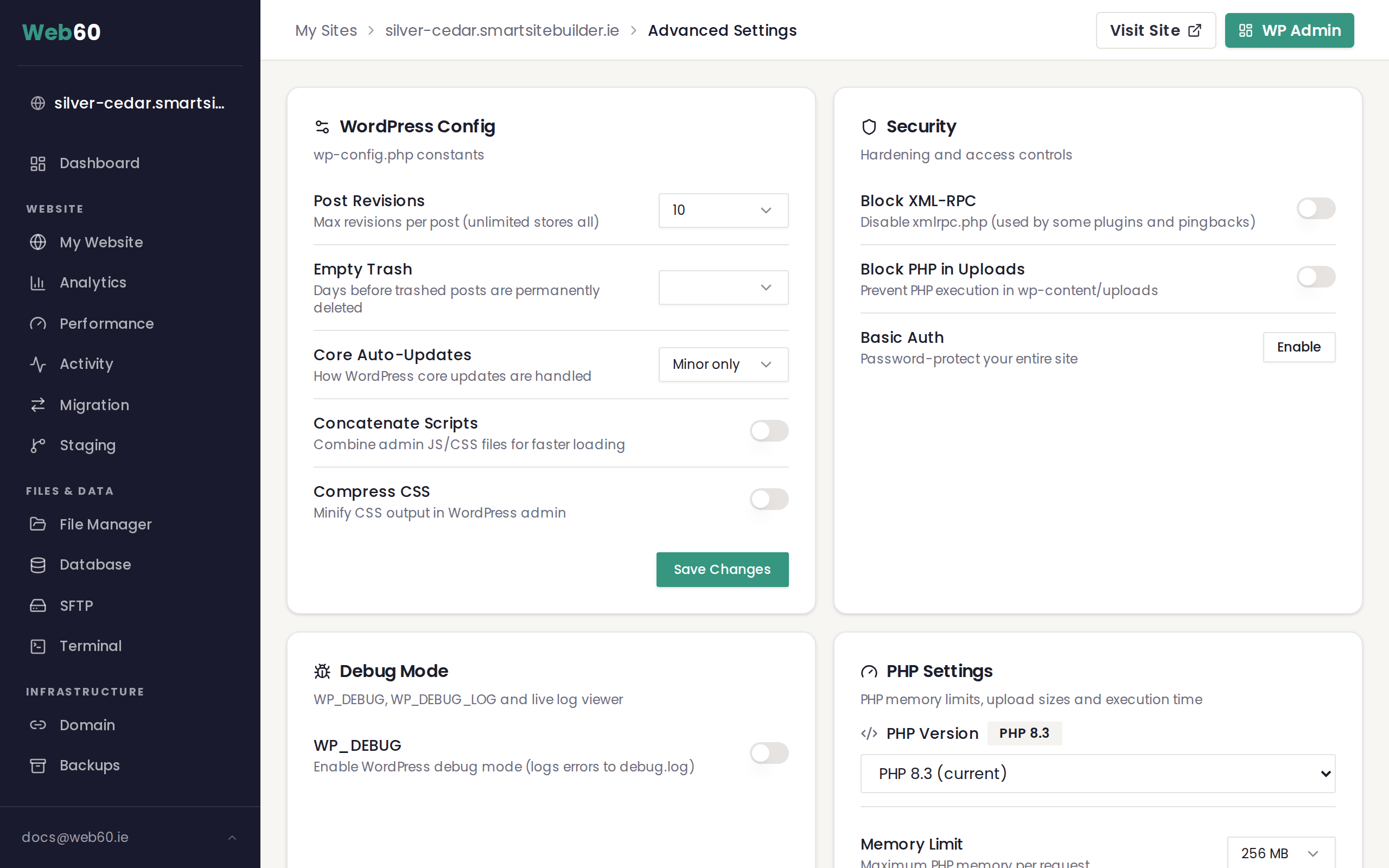
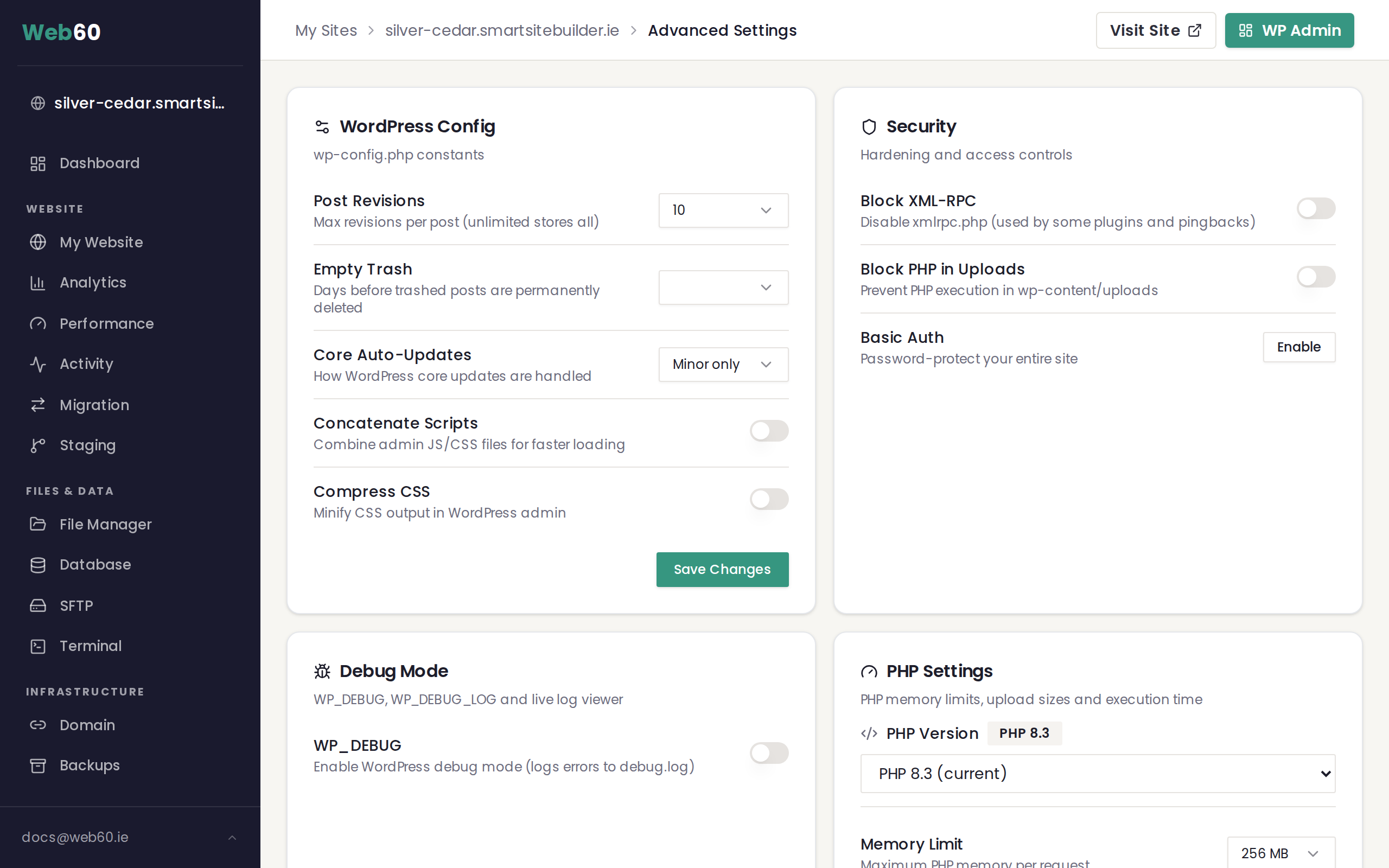
- Click Advanced Settings in the sidebar.
- Scroll to the Security card.
- Click the Enable button in the Basic Auth section.
A password will be generated and displayed immediately in a code box. Copy this password before dismissing the notification. You will not be able to view it again after you close it.
After enabling, the Security card will show:
- The username assigned to your site.
- A Reset Password button.
- A Disable button.
Share the username and password with anyone who needs access to the site.
Resetting the password
If you need to change the password (for example, after a client preview is complete), click the Reset Password button in the Security card. A new password will be generated and shown in a code box. Copy it before dismissing, as the previous password will stop working immediately.
How to disable Basic Auth
When your site is ready to go public, simply click the Disable button in the Security card. The browser password prompt will be removed and your site will be accessible to everyone again.
Staging sites and Basic Auth
If you use a staging environment, it is important to know that staging sites are always protected by Basic Auth. This is managed automatically through the Staging page in your Web60 dashboard, not through the Security card. You cannot turn off Basic Auth for staging sites, which ensures that test versions of your site are never visible to the public or indexed by search engines.
For more about staging environments, see How to use your staging site.
Important warning for live sites
If your website is live and receiving visitors, enabling Basic Auth will immediately block everyone from viewing it. Search engines will also lose access, which means your site could eventually be removed from search results.
Only enable Basic Auth on a live public site if you genuinely intend to restrict all access. If you simply want to show a "coming soon" or "under maintenance" message while keeping search engines informed, consider using maintenance mode instead.
Need help?
If you have questions about password-protecting your site or need help choosing the right approach, visit our support page to get in touch.
Frequently asked questions
Will search engines be able to see my site while Basic Auth is enabled?
No. Search engines cannot bypass the browser-level password prompt. While Basic Auth is active, your site will not be crawled or indexed. This is fine for staging or development sites, but be aware that enabling it on a live public site will remove it from search results over time.
Can I change the password after enabling Basic Auth?
Yes. Click the Reset Password button in the Security card. A new password will be generated and displayed. Copy it before dismissing the notification, as it cannot be retrieved again.
Is Basic Auth the same as WordPress login?
No. Basic Auth is a separate layer of protection that appears before your website loads. It is handled by the web server, not by WordPress. Visitors must enter the Basic Auth credentials first, and then they (or you) can log in to WordPress as usual.
Why does my staging site already have a password prompt?
Staging sites are always protected by Basic Auth automatically. This is managed through the Staging page in your Web60 dashboard and cannot be turned off for staging environments. It prevents search engines from indexing your test site and keeps unfinished work private.
Last updated: 16 March 2026