

Keeping your plugins and themes up to date is one of the best ways to keep your website secure and running smoothly. With Web60, you can set up automatic updates so this happens on its own, without you needing to check in every day.
Where to find auto-update settings
- Log in to your Web60 dashboard.
- Click on your website name to open the My Website page.
- Scroll down to the Automatic Updates card.
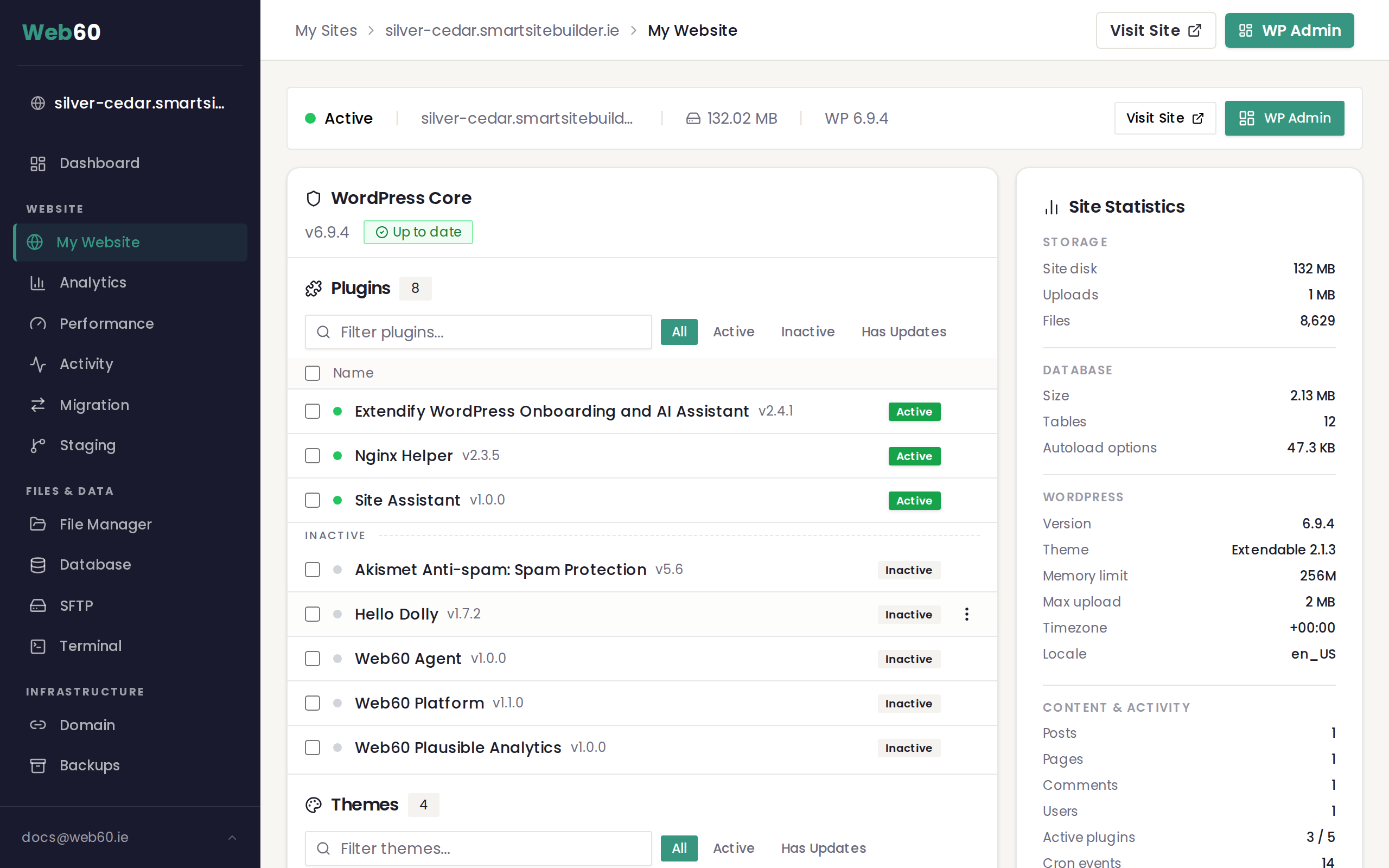
Turn on automatic updates
- Find the Enable automatic updates toggle at the top of the card.
- Click the toggle to switch it on.
Once enabled, the rest of the settings become available for you to configure.
Choose what gets updated
You have two options for which plugins are included:
- Update all plugins automatically keeps every installed plugin up to date. This is the simplest option and is recommended for most sites.
- Choose specific plugins lets you pick individual plugins from a list. Only the ones you select will be updated automatically.
To include themes in your automatic updates, tick the Also update themes automatically checkbox.
Set the update time
- Open the Run updates at dropdown.
- Choose the hour you want updates to run. Times are shown in UTC, so pick a time when your site has the least traffic.
Updates run once per day at the time you choose.
Turn on pre-update backups
We strongly recommend keeping the Take a backup before each update run checkbox turned on. When this is enabled, Web60 creates a full backup of your site right before updates begin. If any update causes a problem, the system can roll back to that backup automatically.
Save your settings
After you have made your choices, click the Save Settings button at the bottom of the card. You will see a confirmation message once your schedule is saved.
Check the last update run
At the top of the Automatic Updates card, you can see when the last automatic update ran and whether it completed successfully. The status will show one of the following:
- All updated means every plugin and theme was updated without issues.
- Partial means some updates succeeded but others did not.
- Failed means the update run encountered a problem.
- Rolled back means an update caused an error and was automatically reversed using the pre-update backup.
Turn off automatic updates
If you want to stop automatic updates at any time, simply click the toggle to switch it off and then click Save Settings. Your plugins and themes will no longer be updated automatically, but you can still update them manually from the Software Manager.
All six auto-update settings explained
Here is a breakdown of every setting in the Automatic Updates card:
-
Enable automatic updates toggle. The main on/off switch. When it is off, no automatic updates run. Turn it on to access the rest of the settings.
-
Run updates at (time selector). Choose the hour when updates run each day. The time is in UTC. In Ireland, UTC matches your clock in winter. In summer, Irish time is UTC+1, so 03:00 UTC would be 04:00 Irish Summer Time.
-
Update all plugins vs specific plugins. Choose to update every plugin, or select specific ones from a checklist by ticking their checkboxes. Only ticked plugins will be updated.
-
Also update themes toggle. Turn this on to update themes alongside plugins during each update run.
-
Take a backup before each update run toggle. Web60 creates a full backup before updates begin. If an update causes a problem, the system rolls back. We recommend leaving this on.
-
Save Settings button. Your changes do not take effect until you click Save Settings.
Recommended settings
For a typical Irish small business website, we recommend the following setup:
- Enable automatic updates: On
- Run updates at: 03:00 UTC (this is 03:00 in winter and 04:00 in summer, well outside business hours)
- Plugin selection: Update all plugins automatically
- Also update themes: On
- Pre-update backup: On
This combination keeps your site secure and up to date without any manual work. The pre-update backup means you always have a safe copy to fall back on if anything goes wrong.
Need help?
If you have any questions about setting up automatic updates, visit our support page and we will help you get everything configured.
Frequently asked questions
What time do automatic updates run?
You choose the hour. The time is set in UTC, so check the difference with your local time zone. Updates run once per day at the hour you pick.
Can I auto-update only some of my plugins?
Yes. When you turn on auto-updates, you can choose between updating all plugins or selecting specific ones from a list. Only the plugins you pick will be updated automatically.
What happens if an automatic update breaks my site?
If you have the pre-update backup option turned on, Web60 takes a backup before every update run. If something goes wrong, the update is automatically rolled back and your site is restored.
Do auto-updates also cover themes?
Yes. There is a separate checkbox to include themes in your automatic update schedule. Turn it on and your themes will be updated alongside your plugins.
Last updated: 15 March 2026