

WordPress releases regular updates that include security fixes, performance improvements, and new features. Keeping WordPress itself up to date is just as important as updating your plugins and themes. Your Web60 dashboard makes this easy to do in a few clicks.
Check your current WordPress version
- Log in to your Web60 dashboard.
- Click on your website name to open the My Website page.
- Scroll down to the Software Manager card.
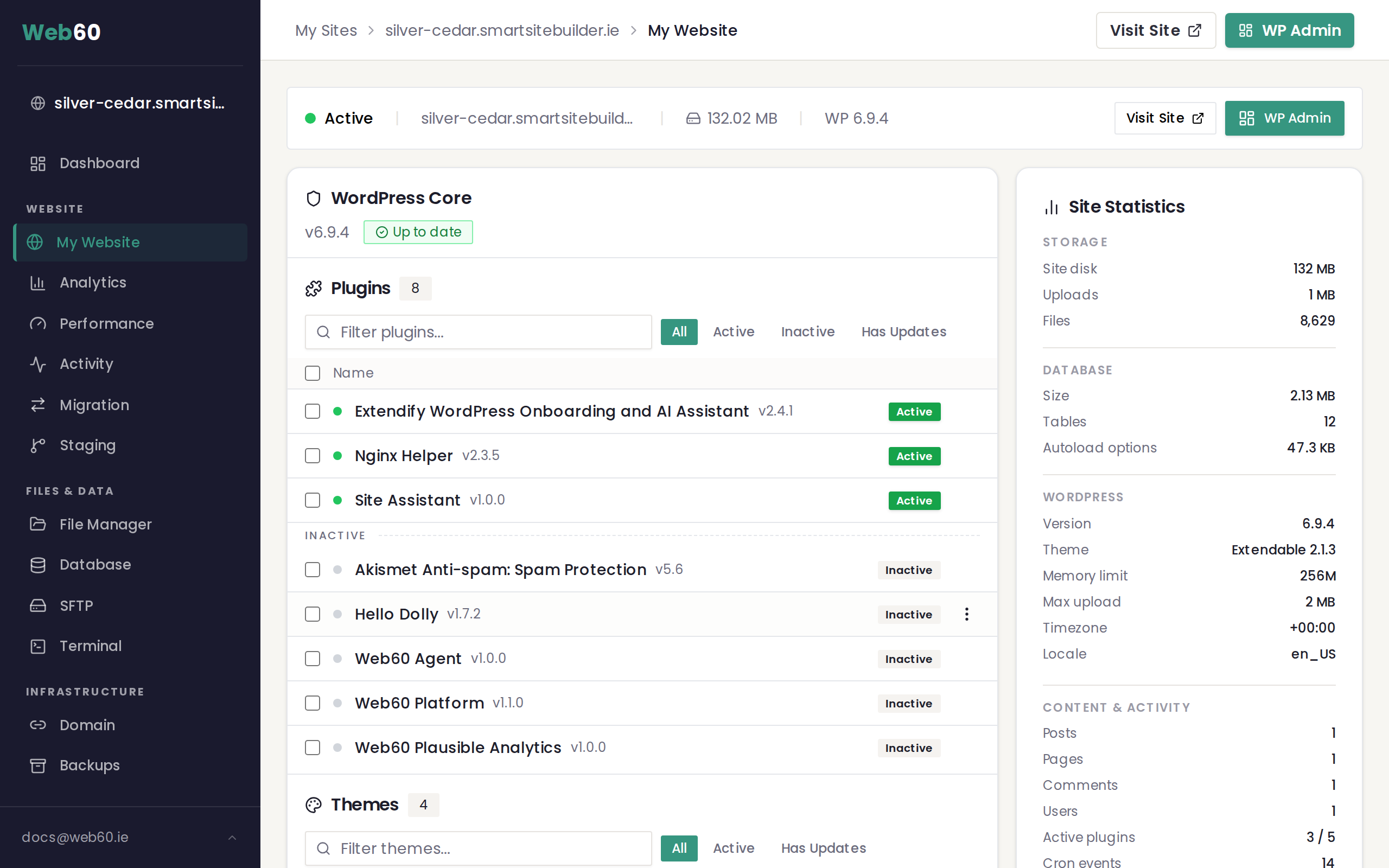
- Click the WordPress Core tab.
You will see your current WordPress version displayed clearly. If a newer version is available, an update badge will appear showing the version you can update to.
What a WordPress core update includes
A core update changes the WordPress software that runs your website. It typically includes:
- Security patches that fix known vulnerabilities and keep your site safe
- Bug fixes that resolve issues found in the previous version
- Performance improvements that help your site load faster
- New features that improve the WordPress editing experience
Your content, pages, images, plugins, and themes are not affected by a core update. Only the WordPress software itself is changed.
Run the update
- Open the WordPress Core tab in the Software Manager.
- If an update is available, click the Update WordPress button.
- Confirm that you want to proceed when prompted.
Web60 will begin the update process. This usually takes less than a minute, but do not close the page until it finishes.
Automatic backup before updating
Every time you run a WordPress core update, Web60 automatically creates a full backup of your site before making any changes. This means you always have a safe copy to go back to if anything unexpected happens.
You do not need to create a manual backup first. The system handles it for you.
What to do if something goes wrong
In rare cases, a WordPress update may cause a conflict with one of your plugins or your theme. If your site is not working correctly after an update, follow these steps:
- Go to the Backups section in your Web60 dashboard.
- Find the backup that was created just before the update.
- Click Restore to bring your site back to its previous state.
For a full walkthrough, see our guide on restoring a backup.
After restoring, you may want to check whether any of your plugins need to be updated before trying the WordPress update again. Sometimes an older plugin is not compatible with the newest version of WordPress, and updating the plugin first solves the problem.
Understanding version numbers
WordPress uses a numbering system with three parts, like 6.4.2. Each part tells you something different about the release:
- Major releases are shown by the first two numbers changing, for example from 6.4 to 6.5. These releases add new features and may change how parts of the WordPress editor look or work. They are released a few times per year.
- Minor releases are shown by the last number changing, for example from 6.4.1 to 6.4.2. These releases fix bugs and patch security issues without changing any features. They are smaller and more frequent.
Minor updates are generally safer to install because they do not change how anything works. They simply fix problems, and you should install them promptly.
Major updates are also important, but because they introduce new features and changes, it is worth checking that your theme and plugins are compatible with the new version first. You can do this by reading the release notes on the WordPress blog or checking with the plugin developers. If in doubt, wait a few days after a major release to see if any compatibility issues are reported before updating.
Need help?
If you have any questions about updating WordPress, visit our support page and we will walk you through it.
Frequently asked questions
How do I know if a WordPress update is available?
Open the WordPress Core tab in the Software Manager on your Web60 dashboard. If a newer version exists, you will see an update badge showing the new version number alongside your current version.
Will updating WordPress delete my content?
No. A core update changes the WordPress software itself. Your pages, posts, images, and settings all stay exactly as they are.
What should I do if my site breaks after a WordPress update?
Web60 takes an automatic backup before every core update. Go to the Backups section of your dashboard and restore the most recent backup to bring your site back to the way it was before the update.
Last updated: 15 March 2026