

There are times when you might need to download a copy of your WordPress database. This guide walks you through the process step by step.
Why export your database?
There are a few common reasons to export your database:
- Manual backup — you want an extra copy of your data saved on your own computer
- Migration — you are moving your site to another host and need to bring your content with you
- Developer request — a developer working on your site has asked for a copy of the database
- Troubleshooting — you need to share your database with support to investigate an issue
It is worth noting that Web60's automatic backups already include your database, so you only need to export manually for specific purposes like these.
How to export your database
Step 1: Open the database tool
Follow the steps in our database access guide to open the database tool from your Web60 dashboard.
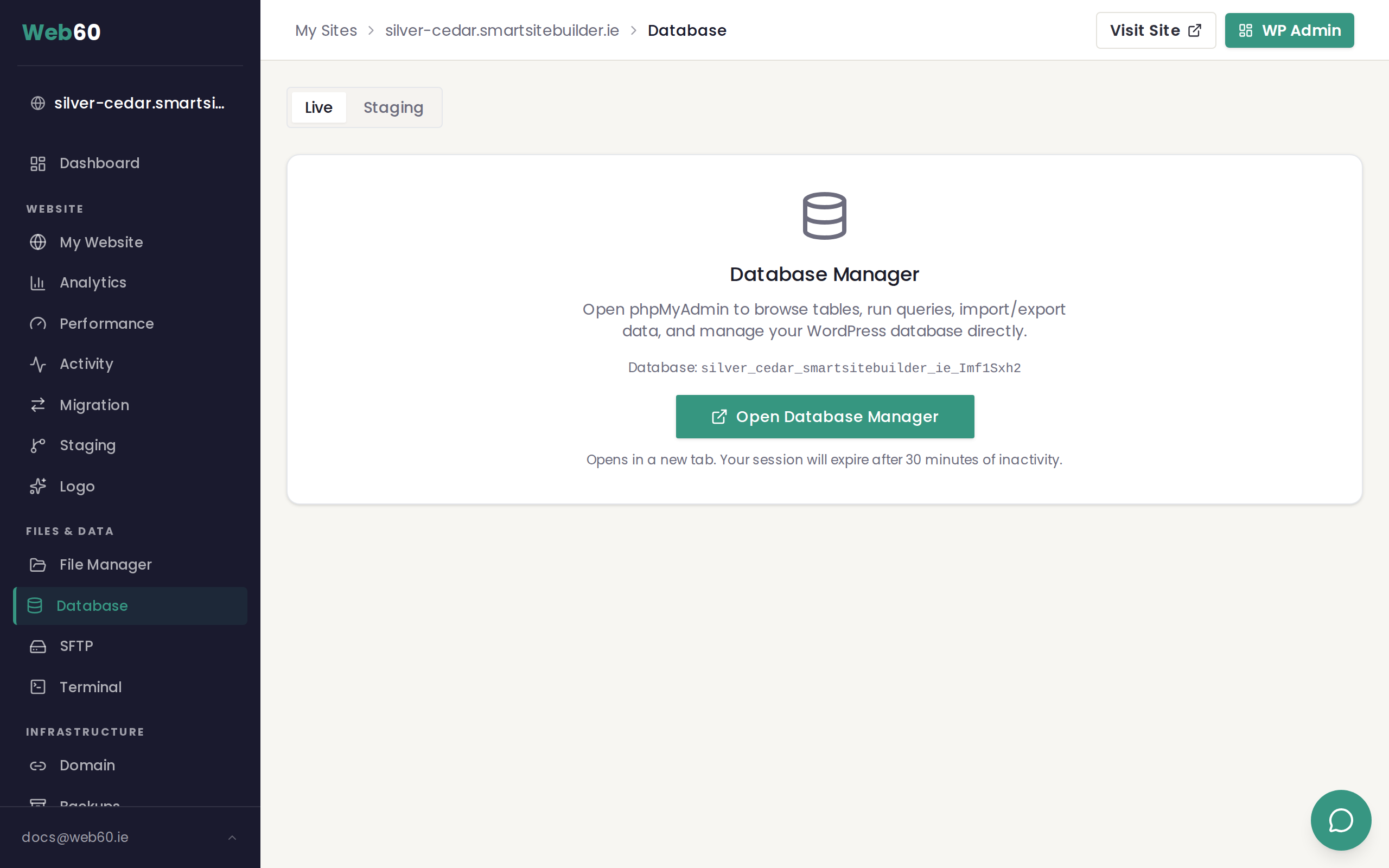
Step 2: Click Export
Once you are in the database tool, click the Export tab at the top of the page.
Step 3: Choose your export settings
For most cases, the default settings work perfectly:
- Export method: Quick — this exports your entire database in one go
- Format: SQL — this is the standard format that can be imported into any WordPress site
Click Go (or Export) to start the download.
Step 4: Save the file
A file with the extension .sql will download to your computer. Save it somewhere safe. This file contains all the content from your database, including your pages, posts, settings, and user accounts.
Advanced export options
If you click Custom instead of Quick for the export method, you will see additional options:
- Choose specific tables — useful if you only need certain data, rather than the whole database
- Compression — choose gzip to create a smaller, compressed file. This is recommended for larger databases
- Add DROP TABLE statements — useful if you plan to import this file and want it to replace existing tables
For most people, the Quick export with default settings is all you need.
Tips
- Label your exports clearly. Include the date in the filename so you know when it was created. For example:
my-website-database-2026-03-31.sql - Store exports securely. Your database contains sensitive information like user email addresses and site settings. Keep the file somewhere safe and do not share it publicly.
- Use Web60 backups for everyday safety. You do not need to export your database regularly — Web60's automatic daily backups already cover this.
Need help?
If you have any trouble exporting your database, visit our support page and we will help you out.
Frequently asked questions
How large will my database export be?
Most small to medium WordPress websites have databases between 5 MB and 50 MB. Larger sites with thousands of posts or WooCommerce stores can be bigger. The export file is a text file, so it compresses well if you choose the gzip option.
Can I export just one table?
Yes. Instead of using the Export tab, click on the specific table you want to export first, then click Export from within that table view. This will export only that table.
Is this the same as a Web60 backup?
Not quite. A Web60 backup includes your entire website — all your files, images, themes, and plugins as well as the database. A database export only includes the database. For most purposes, the automatic Web60 backups are all you need.
Last updated: 31 March 2026