

Your WordPress database is where all your website content is stored. This includes your pages, posts, settings, user accounts, plugin settings, and more. While most people never need to access the database directly, there are times when it can be useful for advanced tasks.
When might you need database access?
Most website owners will never need to open the database tool. Web60 and WordPress handle everything for you. However, you might need it if:
- A developer has asked you to look up or change a specific setting
- You need to export your database for a migration
- You want to search for a specific piece of content across your site
- You need to troubleshoot a technical issue
If you are not comfortable working with databases, that is completely fine. Our support team is always happy to help.
How to access the database tool
- Sign in to your Web60 dashboard
- Click your site to open the site overview
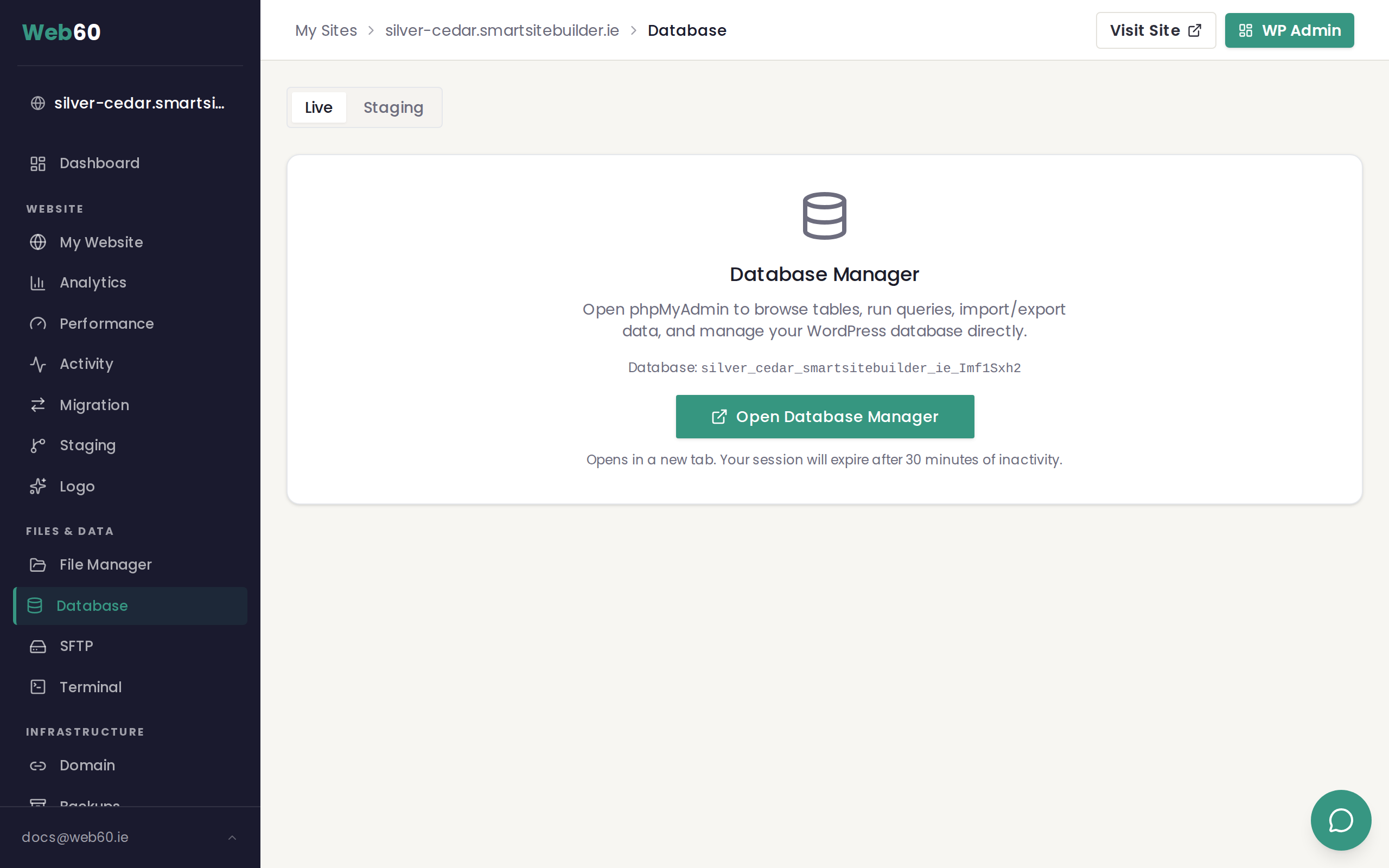
- Click Database in the left sidebar
- Click Open phpMyAdmin (or the database tool link)
- You will see your database tables listed on the left-hand side
The database tool opens in a new browser tab, so your Web60 dashboard stays open in the background.
What you can do in the database tool
Once you are in, you can:
- Browse tables — click on any table name to see the data inside it
- Search for content — use the Search tab to find specific text across one or more tables
- Run queries — if you know what you are doing, you can run custom database queries using the SQL tab
- Export your database — download a copy of your database for backup or migration purposes (see our export guide)
- Import a database — upload a database file to replace or add data (see our import guide)
Understanding database tables
Your WordPress database contains several tables, each storing a different type of information. Here are some of the most common ones:
- wp_posts — your pages, posts, and other content
- wp_options — your site settings, including the site name, URL, and plugin settings
- wp_users — user accounts that can log in to your WordPress dashboard
- wp_comments — comments left by visitors on your posts
Most table names start with wp_ followed by a short description of what the table contains.
Important safety warnings
The database tool is powerful, and changes take effect immediately. Please keep these warnings in mind:
- Always create a backup first. Before making any database changes, go to the Backups tab in your Web60 dashboard and create a manual backup. This way, if anything goes wrong, you can restore your site.
- Editing the wrong data can break your site. Changing or deleting data in the wrong table can cause your website to stop working or display errors.
- If you are not sure, ask for help. There is no shame in contacting support. We would rather help you do it safely than have you fix a broken site afterwards.
Need help?
If you need assistance with your database, visit our support page and we will be happy to help.
Frequently asked questions
Is it safe to edit my database directly?
It can be, but you need to be careful. Editing the wrong data can break your website. Always create a backup before making any database changes, and if you are not sure what you are doing, contact support first.
What are all these tables?
Your WordPress database is organised into tables, each storing a different type of information. For example, one table stores your posts, another stores your pages, and another stores your site settings. Most table names start with wp_ followed by a description.
Can I undo a database change?
Not directly. Once a change is saved, it takes effect immediately. This is why it is so important to create a backup before making any changes. If something goes wrong, you can restore your site from that backup.
Last updated: 31 March 2026