

If you need to import a database file into your WordPress site, whether you are restoring from a manual backup, migrating from another host, or a developer has sent you a file, this guide explains how to do it.
When to import a database
Common reasons to import a database include:
- Restoring from a manual backup — you previously exported your database and need to restore it
- Migrating from another host — you are moving your website to Web60 and have a database file from your old host
- Developer handoff — a developer has made changes to a copy of your database and sent you the updated file
Before you start
Create a backup of your current site first. Importing a database replaces existing data, so it is essential to have a backup in case anything goes wrong.
- Sign in to your Web60 dashboard
- Click your site
- Go to the Backups tab
- Click Run Backup and wait for it to complete
Once your backup is saved, you can proceed with confidence.
How to import a database file
Step 1: Open the database tool
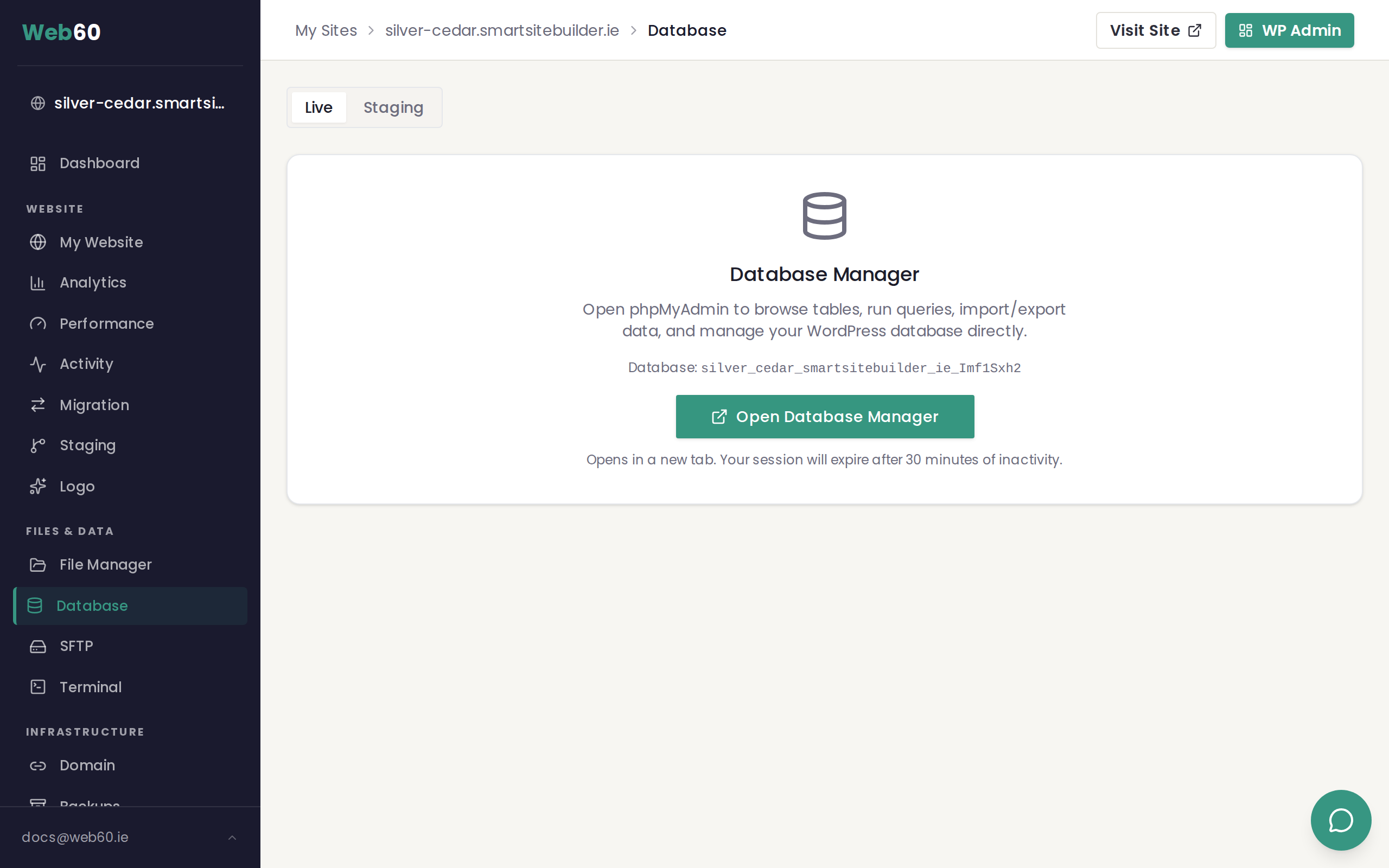
Follow the steps in our database access guide to open the database tool from your Web60 dashboard.
Step 2: Click Import
Once you are in the database tool, click the Import tab at the top of the page.
Step 3: Choose your file
Click Choose File (or Browse) and select the .sql file on your computer. If your file is compressed as a .sql.gz file, that works too — the tool will decompress it automatically.
Step 4: Check the settings
Leave the format set to SQL. The other default settings are fine for most imports.
Step 5: Click Go
Click Go (or Import) to start the process. Depending on the size of your database, this may take anywhere from a few seconds to a few minutes.
Once complete, you will see a success message confirming that the import finished.
If your file is too large
If you get an error saying the file is too large to upload, try the following:
- Compress the file — save it as a .sql.gz file before uploading. Most computers can create gzip files using free tools like 7-Zip (Windows) or the built-in compression on Mac
- Contact support — for very large database files, our team can help import it for you directly
After importing
Once the import is complete, there are a few things to check:
- Visit your website and make sure everything looks correct
- Clear your site cache from the Performance tab in your Web60 dashboard, as cached pages may still show old content
- Check your WordPress dashboard to make sure your pages, posts, and settings are all present
- Test key features like contact forms, menus, and any plugins that store data in the database
If anything looks wrong, you can restore your site from the backup you created before the import.
Important warnings
- Importing replaces existing data. Any content in the affected database tables will be overwritten by the imported file. This is why backing up first is so important.
- Make sure the file matches your site. Importing a database from a completely different website can cause problems. The database should be from the same WordPress site or a copy of it.
- Do not import files from untrusted sources. Only import database files that you or someone you trust created.
Need help?
If you need assistance importing a database, visit our support page and we will take care of it for you.
Frequently asked questions
Will importing overwrite my existing content?
It depends on the file. Most database exports include instructions to replace existing tables with the imported data. This means your current content in those tables will be replaced. Always create a backup before importing.
What's the maximum file size I can import?
The database tool typically supports files up to 50 MB. If your file is larger, try compressing it as a .sql.gz file before uploading, or contact support for help with larger imports.
What format does the database file need to be?
The file should be in SQL format, with a .sql or .sql.gz extension. This is the standard format used by WordPress database exports.
Last updated: 31 March 2026