

If you chose Empty WordPress when you set up your Web60 site, or if you have switched away from the AI builder, you have full control over how your website looks and works. This guide explains how to manage everything yourself.
Your Web60 dashboard stays the same
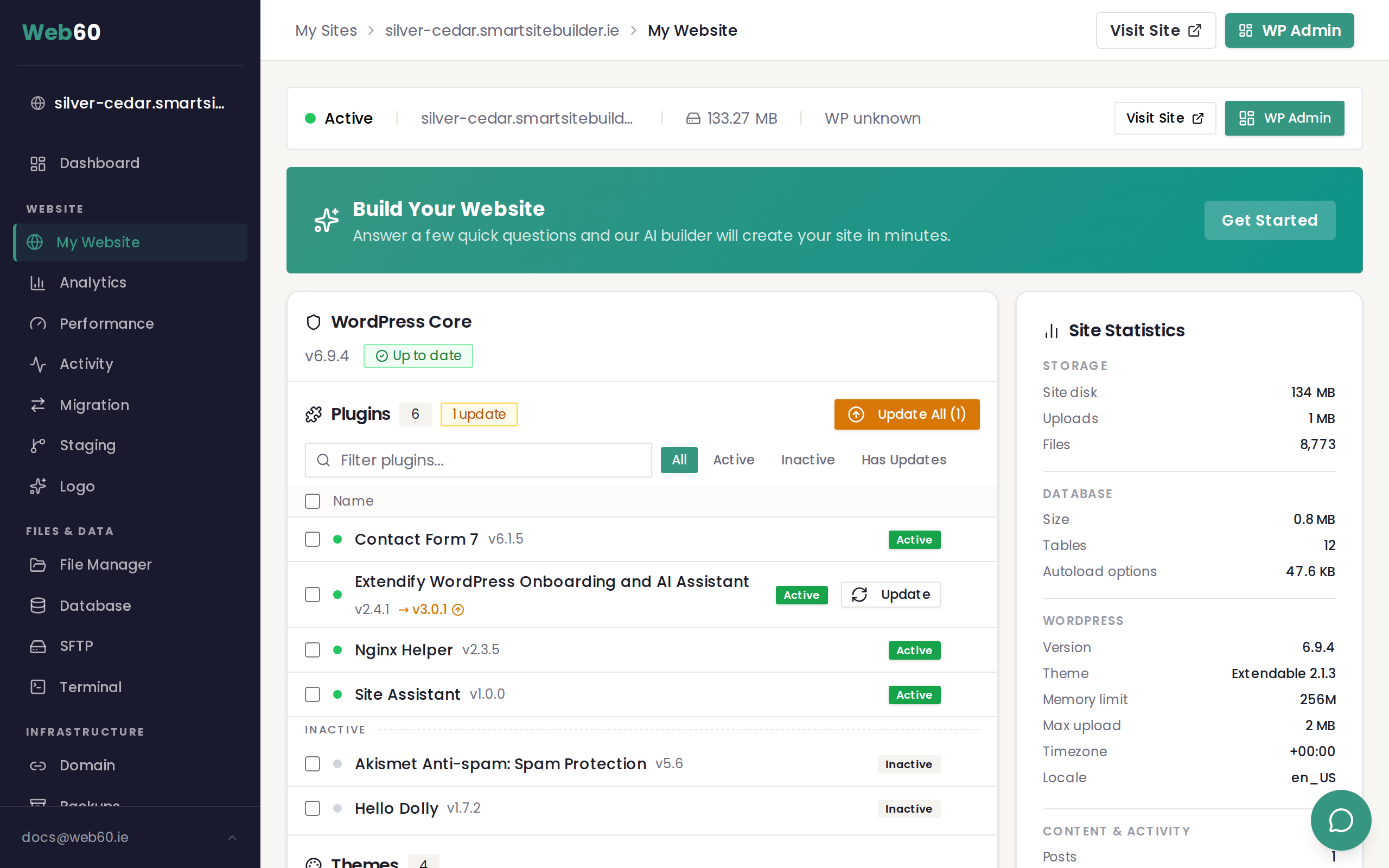
Whether you use the AI builder or not, your Web60 dashboard works in exactly the same way. You still have access to:
- Backups — automatic daily backups and manual backup creation
- Domain — connect and manage your custom domain name
- SFTP — access your website files directly
- Staging — create a private test copy of your site
- Analytics — see how visitors are finding and using your site
- Billing — manage your subscription and invoices
The only difference is what happens when you open WordPress itself. Instead of the AI builder guiding you, you are in charge of choosing your theme, creating pages, and installing plugins.
How to access the WordPress editor
- Sign in to your Web60 dashboard
- Click on your site name
- Click Open WordPress
This takes you straight into the WordPress dashboard, where you can manage every aspect of your site.
Choosing and managing your theme
Your theme controls how your website looks. To browse and change themes:
- In your WordPress dashboard, go to Appearance > Themes
- Click Add New Theme to browse free themes
- Preview any theme before activating it
- Click Activate to apply your chosen theme
Most themes come with their own customisation options. Go to Appearance > Customise to adjust colours, fonts, menus, and layout settings.
If you have purchased a premium theme, you can upload it by clicking Add New Theme and then Upload Theme.
Creating pages and posts
WordPress has two main content types:
- Pages are for permanent content like your homepage, about page, services, and contact page. Go to Pages > Add New Page to create one.
- Posts are for blog articles, news, and updates. Go to Posts > Add New Post to create one.
The WordPress block editor lets you build pages visually. Click the + button to add blocks such as headings, paragraphs, images, buttons, columns, and more. You can rearrange blocks by dragging them or using the arrow controls.
Managing your media library
All the images, documents, and videos you upload are stored in your Media Library. You can access it from Media in the WordPress sidebar. From here you can:
- Upload new files
- Edit image titles and descriptions
- Delete files you no longer need
When you add an image to a page or post, it is automatically added to your media library as well.
Installing plugins
Plugins add extra features to your site, such as contact forms, galleries, or online booking. To install a plugin:
- Go to Plugins > Add New Plugin
- Search for the plugin you need
- Click Install Now, then Activate
Only install plugins from trusted sources, and remove any you are not using. See our guide on installing plugins for more detail.
WordPress settings
A few important settings to check:
- Settings > General — set your site title and tagline
- Settings > Reading — choose which page is your homepage
- Settings > Permalinks — set to "Post name" for clean, readable URLs
- Settings > Discussion — control comments on your posts
Web60 handles the rest
Even though you are managing WordPress yourself, Web60 takes care of all the behind-the-scenes work. Your hosting, security, backups, and server updates are all handled automatically. You can focus entirely on building your website content.
Need help?
If you need a hand with anything, visit our support page and we will be happy to help.
Frequently asked questions
Do I miss out on any features by not using the AI builder?
No. Your Web60 dashboard works exactly the same way. You still get automatic backups, domain management, SFTP access, staging, analytics, and all the same hosting features. The only difference is that you build your pages and choose your theme yourself inside WordPress.
Can I get help building my site manually?
Absolutely. Our support team is happy to point you in the right direction. Visit our support page and we will help you with themes, plugins, or any aspect of setting up your site.
Is my site still backed up and secure?
Yes. Web60 handles all backups, security, and server maintenance automatically, regardless of whether you use the AI builder or manage WordPress yourself.
Last updated: 31 March 2026