
SFTP (Secure File Transfer Protocol) is a safe way to transfer files between your computer and your website. It works using software on your computer, such as FileZilla, which connects directly to your website files. This is useful when you need to upload or download large numbers of files, or when you want to work with your website files from your own computer.
Before you start
To use SFTP, you will need:
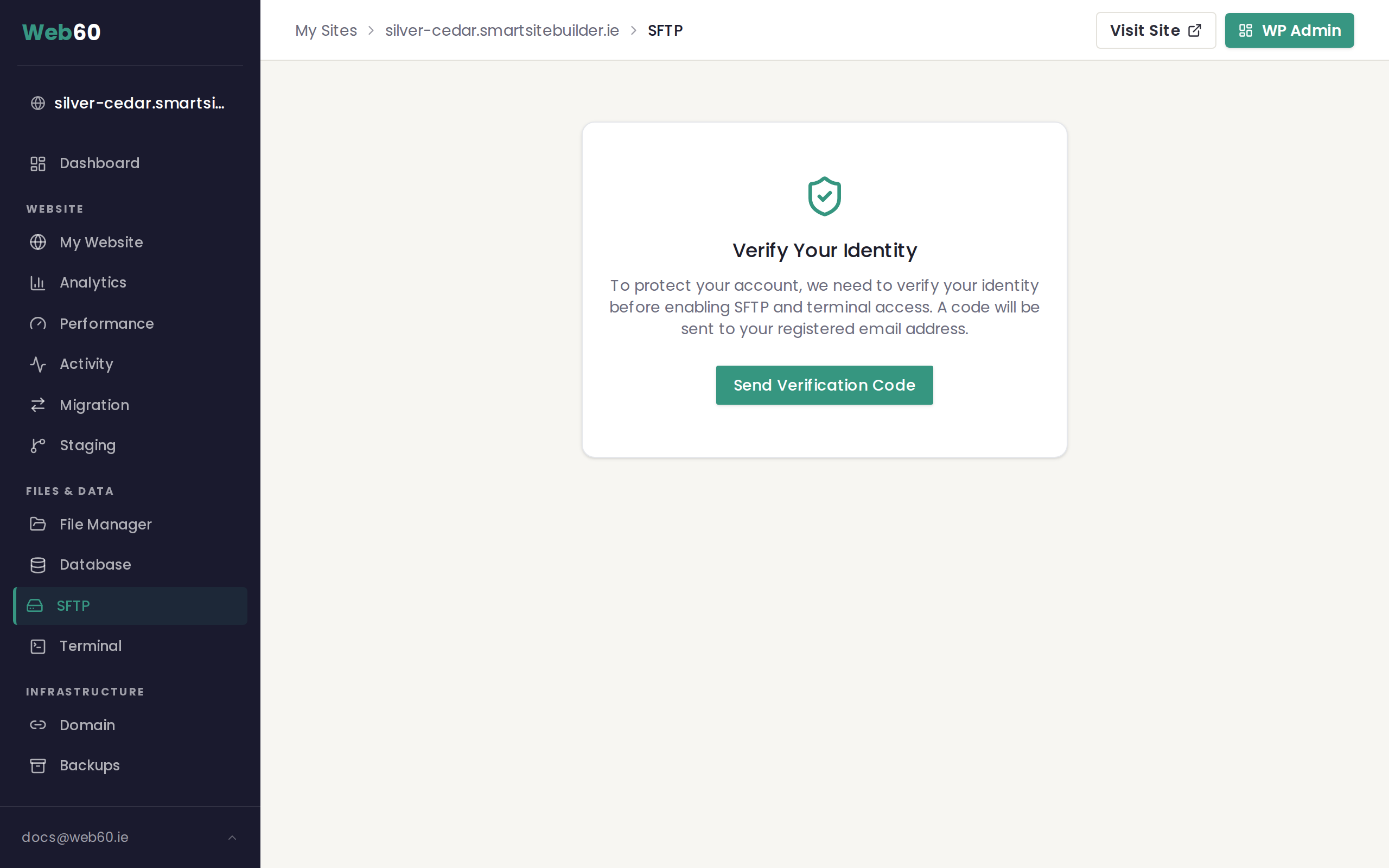
- A verified Web60 account (you will be prompted to verify when you first visit the SFTP page)
- SFTP software installed on your computer (we recommend FileZilla, which is free)
If you do not have FileZilla yet, you can download it from filezilla-project.org.
Step 1: Find your SFTP credentials
- Log in to your Web60 dashboard.
- Select the website you want to connect to.
- Click SFTP in the left-hand sidebar.
If this is your first time, you may be asked to verify your account. Follow the on-screen steps to complete the verification. Once verified, SFTP access will be turned on automatically.
You will see your connection details displayed on the page:
- Host: the server address to connect to
- Port: the port number (this may not be the standard port 21, so make sure you enter it correctly)
- Username: your SFTP username for this website
- Protocol: this will show SFTP
You can use the Copy buttons next to each field to copy the details to your clipboard, or click Copy All Details to copy everything at once.
Step 2: Generate your password
- On the SFTP page, look for the Password section.
- Click Generate Password to create a new SFTP password.
- Your password will be shown on screen. Copy it and save it somewhere safe because it will not be shown again.
If you ever forget your password, you can come back to this page and click Reset Password to create a new one.
Step 3: Connect with FileZilla
- Open FileZilla on your computer.
- At the top of the FileZilla window, you will see fields for Host, Username, Password, and Port.
- Enter the Host from your Web60 dashboard.
- Enter your Username from your Web60 dashboard.
- Enter the Password you generated in the previous step.
- Enter the Port from your Web60 dashboard.
- Click Quickconnect.
FileZilla will connect to your website. You may see a message asking you to trust the server's certificate. Click OK or Always trust to continue.
Once connected, you will see your website files on the right side of the FileZilla window. Your local computer files are shown on the left side.
Transferring files
To upload files to your website:
- Navigate to the folder on your computer (left side) that contains the files you want to upload.
- Navigate to the destination folder on your website (right side).
- Drag the files from the left side to the right side.
To download files from your website:
- Navigate to the folder on your website (right side) that contains the files you want.
- Navigate to the folder on your computer (left side) where you want to save them.
- Drag the files from the right side to the left side.
What you can do with SFTP
- Upload theme files, plugins, or images in bulk
- Download a copy of your website files to your computer
- Replace a file that needs updating
- Upload files that are too large for the WordPress media uploader
A word of caution
SFTP gives you direct access to all the files that make up your website. While this is powerful, editing or deleting core WordPress files can break your site. Before making changes:
- Create a backup using the backup tool first
- Avoid changing any files outside the wp-content folder. The other folders contain core WordPress system files that must not be edited.
- Do not edit wp-config.php unless our support team has asked you to
- If you are unsure whether a change is safe, ask us first
Need help?
If you are having trouble connecting or need guidance on transferring files, visit our support page and we will help you get connected.
Frequently asked questions
What is SFTP?
SFTP stands for Secure File Transfer Protocol. It is a safe way to transfer files between your computer and your website using software like FileZilla. All files are encrypted during transfer so nobody can intercept them.
Do I need to verify my account before using SFTP?
Yes. For security, Web60 requires you to verify your account before SFTP access is enabled. You will be guided through the verification steps when you first visit the SFTP page in your dashboard.
Can I use software other than FileZilla?
Yes. Any SFTP software will work, including WinSCP, Cyberduck, and Transmit. The connection details are the same regardless of which program you use.
I have lost my SFTP password. How do I get a new one?
You can generate a new password at any time from the SFTP page in your Web60 dashboard. Click the Reset Password button and a new password will be created for you.
Last updated: 15 March 2026