
Your Web60 dashboard includes a built-in file manager that lets you browse, view, and download the files that make up your website. This is useful when you need to find a specific file, check whether an upload was successful, or download a copy of something from your site.
Where to find the file manager
- Log in to your Web60 dashboard.
- Select the website you want to manage.
- Click Files in the left-hand sidebar.
The file manager will open showing the contents of your website's main folder.
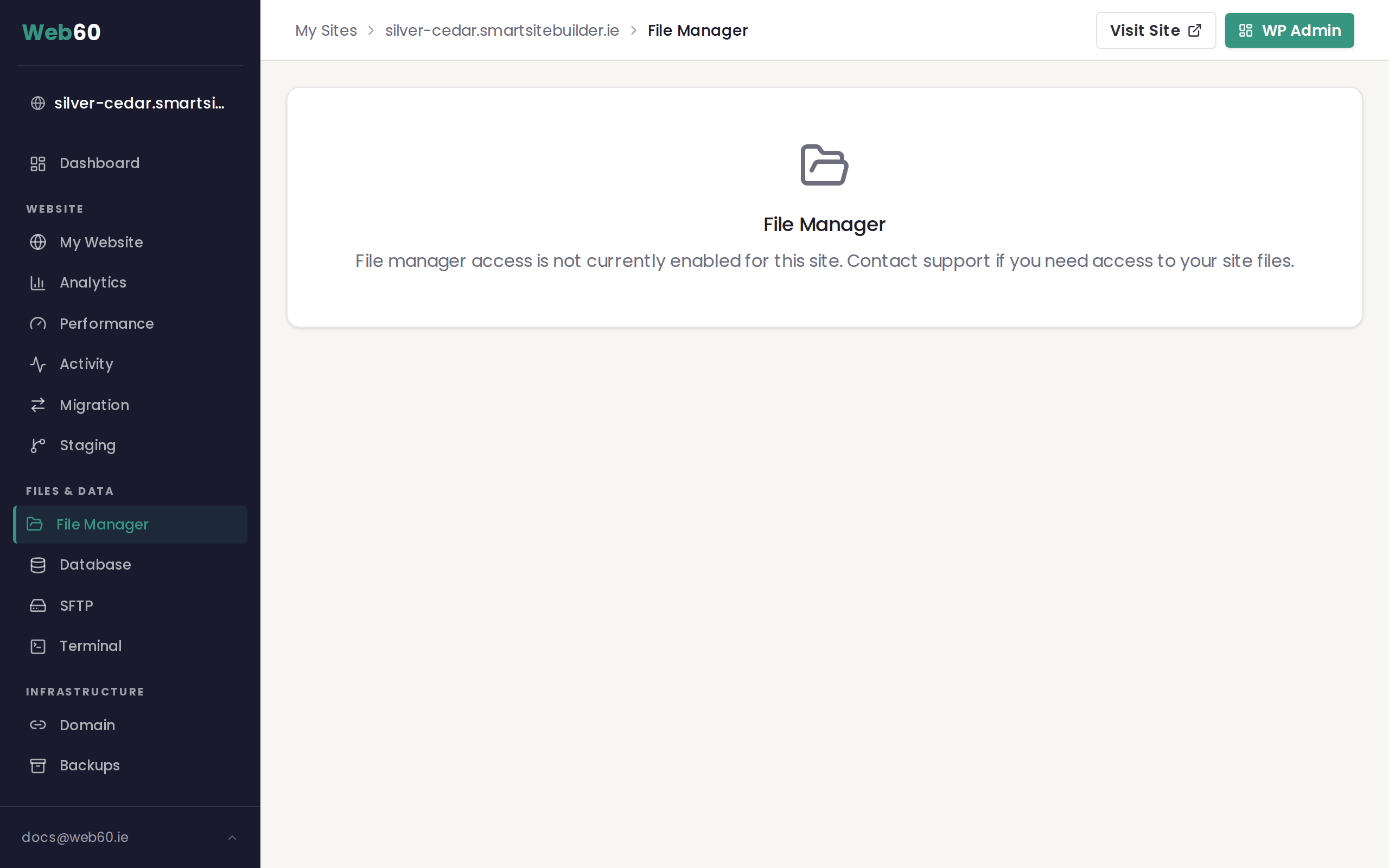
What the file manager shows
The file manager displays the htdocs folder, which is the root folder of your website. Everything that makes up your site lives here, including:
- wp-content: this folder contains your themes, plugins, and uploaded images
- WordPress system files: these power the editor itself and must never be changed.
- wp-includes: core WordPress files (you should not change these either)
- wp-config.php: your website's main configuration file (this is protected and read-only in the file manager)
Navigating folders
- Click on any folder name to open it and see what is inside.
- Use the breadcrumb trail at the top to jump back to a parent folder.
- Click the up arrow to go back one level.
The file manager shows each item's name, size, and type so you can quickly find what you are looking for.
Viewing a file
- Click on any file to open it.
- The file manager will show you the contents if it is a text-based file such as a configuration file or a style sheet.
- For images, you will see a preview of the image.
Downloading a file
- Select the file you want to download.
- Click the Download button.
- The file will be saved to your computer.
This is handy when you need a copy of a specific image, a theme file, or anything else from your website.
Uploading files
- Click the Upload button in the file manager toolbar.
- Choose the file or files you want to upload from your computer.
- The files will be uploaded to the folder you are currently viewing.
For uploading many files at once or very large files, you may find it easier to use SFTP access instead.
Creating folders
- Click the New Folder button in the toolbar.
- Type a name for your new folder.
- The folder will be created in your current location.
Searching for files
If you are looking for a specific file and are not sure where it is:
- Use the Search feature in the file manager toolbar.
- Type part of the file name.
- The file manager will show matching results across your site.
A word of caution
The file manager gives you direct access to the files that run your website. While browsing and downloading files is perfectly safe, editing or deleting files can break your website if you are not sure what you are doing.
Before making any changes:
- Create a backup first using the backup tool
- Only make changes inside the wp-content folder. Everything outside it is core WordPress system files that must not be touched.
- Do not edit wp-config.php unless you have been specifically advised to by our support team
If you need to make changes to your website's appearance or content, it is usually safer to do so through your WordPress editor rather than editing files directly.
Need help?
If you are not sure about a file or need help finding something, visit our support page and we will point you in the right direction.
Frequently asked questions
Can I edit files directly in the file manager?
You can view file contents, but be very careful about making changes. Editing the wrong file can break your website. If you are unsure, create a backup first or contact support for help.
What is the htdocs folder?
The htdocs folder is the main folder where all your website files are stored. Everything your visitors see on your website lives inside this folder.
Can I upload files through the file manager?
Yes. You can upload files directly from your computer using the upload button in the file manager. For uploading large numbers of files, you may find it easier to use SFTP instead.
Will deleting a file break my website?
It depends on the file. Deleting images or unused files is generally safe, but deleting theme files, plugin files, or configuration files can break your site. If in doubt, create a backup first.
Last updated: 15 March 2026