
Your Web60 dashboard includes a Site Statistics card that gives you a snapshot of your website's size, database health and content activity. Understanding these numbers helps you spot potential issues early and keep your site running smoothly.
Where to find your site statistics
- Log in to your Web60 dashboard and select the site you want to manage.
- Go to the My Website page.
- In the right-hand column, find the Site Statistics card.
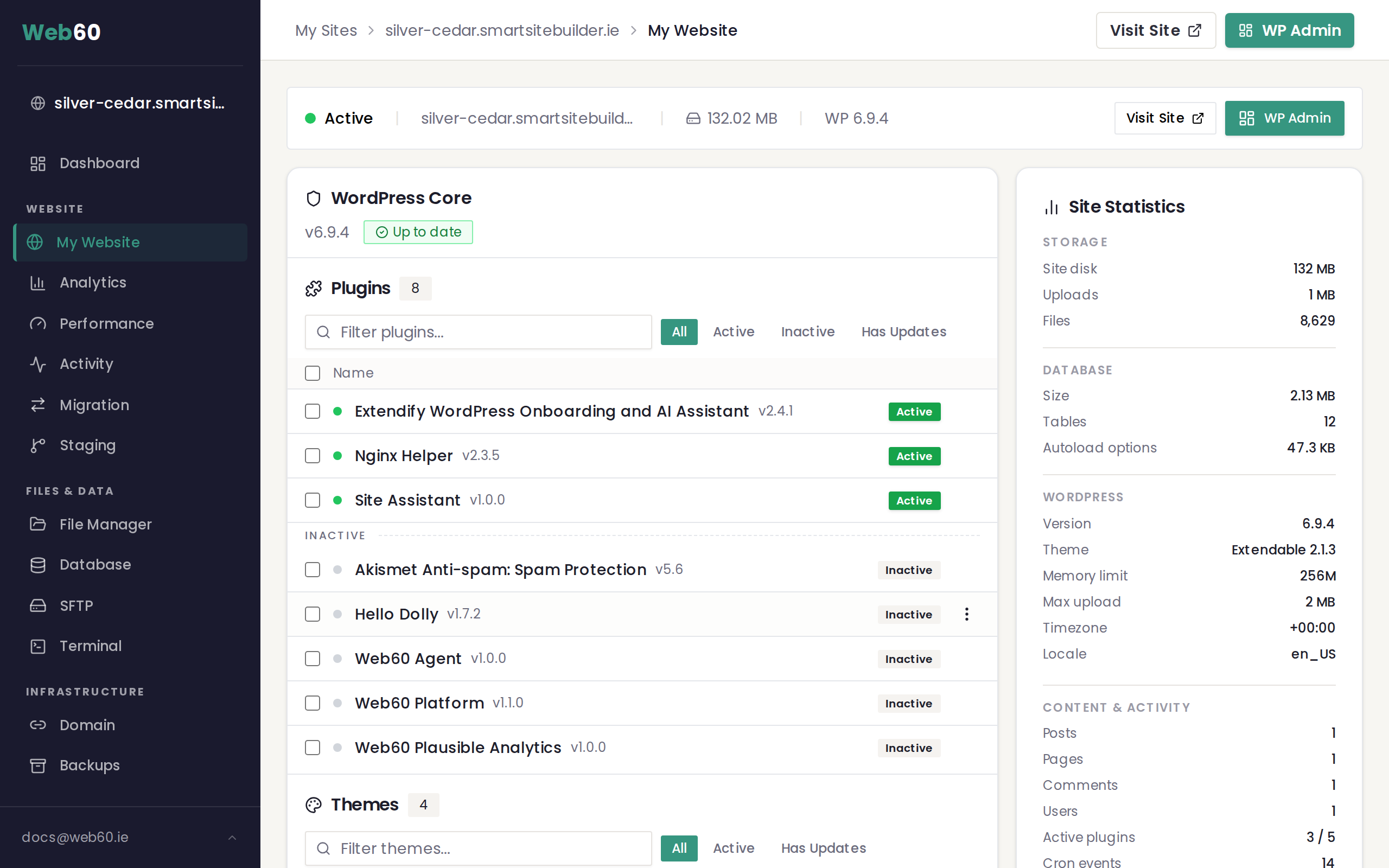
The card is divided into several sections. Here is what each one means.
Storage section
This section shows how much disk space your website files are using:
- Site disk is the total size of your website files in megabytes. This includes WordPress itself, your themes, plugins and any other files in your site directory.
- Uploads shows the size of your media library (images, videos, documents and other files you have uploaded).
- Files is the total number of individual files that make up your site.
If your site disk usage is growing steadily, it may be worth reviewing your media library for large or unused files.
Database section
This section covers the database where your content and settings are stored:
- Size is the total size of your database in megabytes.
- Tables is the number of database tables. A typical WordPress site has around 12 core tables, plus extra tables added by plugins.
- Autoload options shows how much data WordPress loads into memory on every page request. This figure is shown in kilobytes.
Autoload data warning
If your autoload data exceeds 500 KB, the figure will be highlighted in amber as a warning. High autoload values can slow down your site because WordPress reads all of this data on every single page load. Common causes include plugins storing large amounts of configuration data. If you see this warning, consider reviewing your active plugins or contacting support for advice.
WordPress section
This section shows key details about your WordPress installation:
- Version is the WordPress version currently running.
- Theme shows the name and version of your active theme.
- Memory limit is the maximum amount of memory WordPress is allowed to use.
- Max upload is the largest file size you can upload through WordPress.
- Timezone and Locale show the regional settings your site is configured with.
You may also see small badges indicating whether your site uses HTTPS (secure connection), has debug mode enabled, or is a multisite installation.
Content and Activity section
This section summarises your site's content:
- Posts and Pages show how many of each you have published.
- Comments is the total number of comments across your site.
- Users is the number of WordPress user accounts.
- Active plugins shows how many of your installed plugins are currently active, along with the total number installed.
- Cron events is the number of scheduled tasks WordPress has registered.
Overdue cron warning
If any scheduled tasks have missed their expected run time, an Overdue cron counter will appear highlighted in amber. Overdue tasks can indicate that something is preventing WordPress from running its background maintenance. This may affect features like scheduled posts, email notifications or automatic cleanup tasks. For more information, see Understanding overdue scheduled tasks.
Debug log
If your site has WordPress debug logging enabled, the statistics card will also show the size of your debug log file. A very large debug log can consume disk space unnecessarily. You can clear or disable the debug log from the Advanced Settings page.
Frequently asked questions
How often are the statistics updated?
The statistics are fetched each time you load the My Website page. They reflect the current state of your site at the time you view them.
What should I do if my autoload data is too high?
Start by checking which plugins you have active. Some plugins store large amounts of data that gets loaded on every page. Deactivating plugins you no longer use can help reduce this number. If you are unsure which plugin is causing the issue, our support team can investigate.
Is a large number of database tables a problem?
Not necessarily. Plugins often create their own tables, so a site with many plugins will naturally have more tables. The number alone is not a concern unless your overall database size is unusually large or your site is running slowly.
Need help?
If you notice any warnings in your site statistics or want advice on improving your site's performance, visit our support page to get in touch.
Frequently asked questions
How often are the statistics updated?
The statistics are fetched each time you load the My Website page. They reflect the current state of your site at the time you view them.
What should I do if my autoload data is too high?
Start by checking which plugins you have active. Some plugins store large amounts of data that gets loaded on every page. Deactivating plugins you no longer use can help reduce this number.
Is a large number of database tables a problem?
Not necessarily. Plugins often create their own tables, so a site with many plugins will naturally have more tables. The number alone is not a concern unless your overall database size is unusually large or your site is running slowly.
Last updated: 16 March 2026