

When you upload a file through the WordPress media library, the server checks whether the file is within the allowed size limit. If the file is too large, the upload will fail with an error message. The good news is that you can increase this limit directly from your Web60 dashboard in just a few steps.
Why there is a file size limit
File size limits exist to protect your server from being overwhelmed by very large uploads. They ensure that your site remains stable and responsive, even when multiple people are uploading content at the same time. By default, your site allows uploads of up to 64 MB per file, which is enough for most images and documents.
When you might need to increase the limit
Common reasons to raise the upload limit include:
- High-resolution photography (large JPEG or PNG files over 64 MB)
- Video files for direct hosting on your site
- Large PDF documents such as catalogues, reports, or portfolios
- Plugin or theme ZIP files uploaded manually through WordPress
Step-by-step guide
- Open your Web60 dashboard and select the site you want to manage.
- Go to Advanced Settings.
- Find the PHP Settings card.
- Locate the Upload Max Filesize dropdown.
- Choose your preferred limit: 32 MB, 64 MB, 128 MB, or 256 MB.
- Check the Post Max Size setting directly below it. This value must be equal to or greater than the Upload Max Filesize you just selected. If it is lower, increase it to match.
- Save your changes.
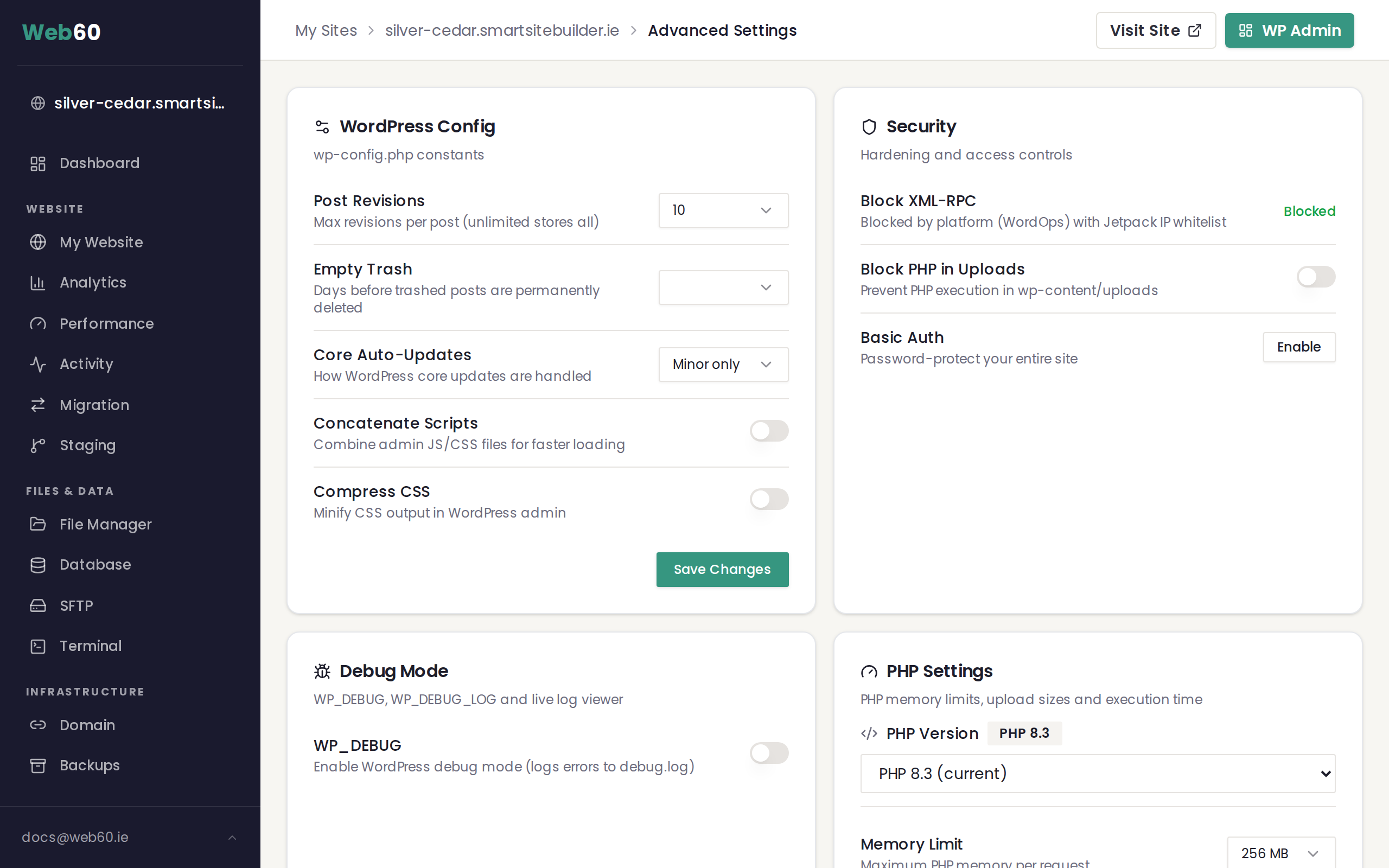
Changes apply immediately. You can go straight to your WordPress media library and upload your file.
Understanding the relationship between Upload Max Filesize and Post Max Size
These two settings work together:
- Upload Max Filesize controls the maximum size of any single file.
- Post Max Size controls the total size of everything submitted in one request, including all files and the text content of your page or post.
For example, if you set Upload Max Filesize to 128 MB, you should set Post Max Size to at least 128 MB as well. If Post Max Size is lower than Upload Max Filesize, your Web60 dashboard will show a warning and ask you to correct it.
For a full overview of all available settings, see How to adjust PHP memory and upload limits.
Recommended values
| Use case | Upload Max Filesize | Post Max Size |
|---|---|---|
| Standard blog with images | 64 MB | 64 MB |
| Photography or portfolio site | 128 MB | 128 MB |
| Video uploads or large files | 256 MB | 256 MB |
If you are unsure, 64 MB is a safe default for most websites. Only increase it if you are regularly uploading files that exceed the current limit.
After increasing the limit
Once you have saved your new settings, try your upload again. If you are still seeing errors, check the following:
- Make sure the specific file you are uploading is within the new limit.
- Confirm that Post Max Size is equal to or greater than Upload Max Filesize.
- If you are uploading very large files, you may also need to increase the Max Execution Time to give the server enough time to process the upload.
Frequently asked questions
Do I need to restart my site after changing the upload limit?
No. Changes to upload limits apply immediately. You can upload your file straight away.
Will increasing the upload limit affect my site speed?
No. The upload limit only applies to file uploads. It does not change how your site serves pages to visitors.
What if my file is still too large even at 256 MB?
If you need to upload files larger than 256 MB, consider using an external service for hosting those files and linking to them from your WordPress content. For video, services like YouTube or Vimeo are often a better choice than hosting directly on your site.
Need help?
If you are still having trouble uploading files after adjusting your settings, contact our support team.
Frequently asked questions
Do I need to restart my site after changing the upload limit?
No. Changes to upload limits apply immediately. You can upload your file straight away.
Will increasing the upload limit affect my site speed?
No. The upload limit only applies to file uploads. It does not change how your site serves pages to visitors.
What if my file is still too large even at 256 MB?
If you need to upload files larger than 256 MB, consider using an external service for hosting those files and linking to them from your WordPress content. For video, services like YouTube or Vimeo are often a better choice.
Last updated: 16 March 2026