

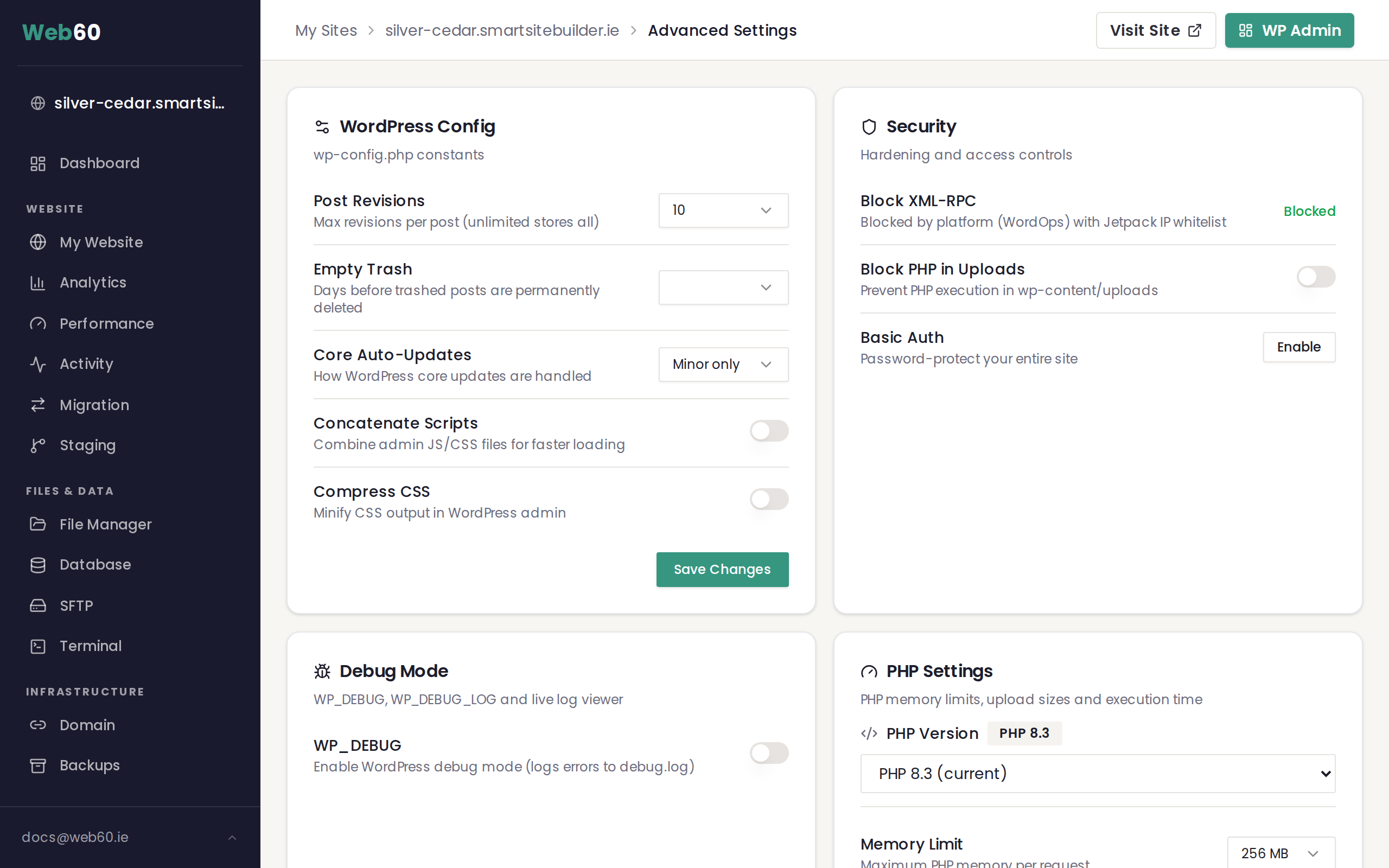
Your Web60 dashboard gives you control over several important server settings that affect how your WordPress site handles memory, file uploads, and long-running tasks. You will find these under Advanced Settings > PHP Settings on your site's management page.
All changes apply immediately. There is no need to restart your site or wait for anything to take effect.
Memory Limit
The memory limit controls how much server memory a single request can use. If your site runs out of memory while processing a page, you will see a "memory exhausted" error.
Available options: 128 MB, 256 MB, 512 MB
Default: 256 MB
When to increase: If you are using plugins that process large amounts of data (such as image galleries, page builders, or import tools), increasing the memory limit to 512 MB can prevent errors. Most standard WordPress sites run well on 256 MB. For help with memory errors, see Fixing memory exhausted errors.
Upload Max Filesize
This setting controls the maximum size of any single file you upload through the WordPress media library.
Available options: 32 MB, 64 MB, 128 MB, 256 MB
Default: 64 MB
This is a per-file limit. If you try to upload a file larger than this value, WordPress will reject the upload with an error. Common reasons to increase this include uploading high-resolution images, video files, or large PDF documents. For a step-by-step guide, see How to increase the maximum file upload size.
Post Max Size
This setting controls the total size of data that can be submitted in a single request. It includes all uploaded files plus any form data (such as the text content of your page or post).
Available options: 32 MB, 64 MB, 128 MB, 256 MB
Important: Post Max Size must always be equal to or greater than Upload Max Filesize. If you try to set it lower, your Web60 dashboard will show a validation warning and prevent the change. As a rule of thumb, set Post Max Size to match your Upload Max Filesize or slightly higher.
Max Execution Time
This setting controls how many seconds a single request is allowed to run before the server stops it. Long-running tasks like large imports, database operations, or plugin installations may need more time.
Available options: 30 seconds, 60 seconds, 120 seconds, 300 seconds
Default: 60 seconds
When to increase: If you are running imports, exports, or bulk operations that time out, try increasing this to 120 or 300 seconds. For everyday use, 60 seconds is sufficient.
How to change these settings
- Open your Web60 dashboard and select the site you want to manage.
- Go to Advanced Settings.
- Find the PHP Settings card.
- Adjust any of the four settings using the dropdown menus.
- Save your changes.
Changes take effect right away. You will see a confirmation message once the new values are applied.
Frequently asked questions
Do I need to restart my site after changing these settings?
No. All PHP setting changes apply immediately. Your site continues running without interruption.
What is the difference between Upload Max Filesize and Post Max Size?
Upload Max Filesize is the limit for a single file. Post Max Size is the limit for the entire request, which includes all files plus any other data being submitted at the same time. Post Max Size should always be equal to or larger than Upload Max Filesize.
Will increasing the memory limit slow down my site?
No. The memory limit is a ceiling, not a reservation. Your site only uses as much memory as it needs for each request. Setting a higher limit simply allows individual requests to use more memory if required.
Need help?
If you are unsure which values to choose or you are still seeing errors after adjusting your settings, contact our support team.
Frequently asked questions
Do I need to restart my site after changing these settings?
No. All PHP setting changes apply immediately. Your site continues running without interruption.
What is the difference between Upload Max Filesize and Post Max Size?
Upload Max Filesize is the limit for a single file. Post Max Size is the limit for the entire request, which includes all files plus any other data being submitted at the same time. Post Max Size should always be equal to or larger than Upload Max Filesize.
Will increasing the memory limit slow down my site?
No. The memory limit is a ceiling, not a reservation. Your site only uses as much memory as it needs for each request. Setting a higher limit simply allows individual requests to use more memory if required.
Last updated: 16 March 2026