

You can change your Web60 password at any time from inside your dashboard. It only takes a minute.
How to change your password
- Sign in to your Web60 dashboard.
- Click "Account" in the left-hand sidebar.
- Scroll down to the Change Password section.
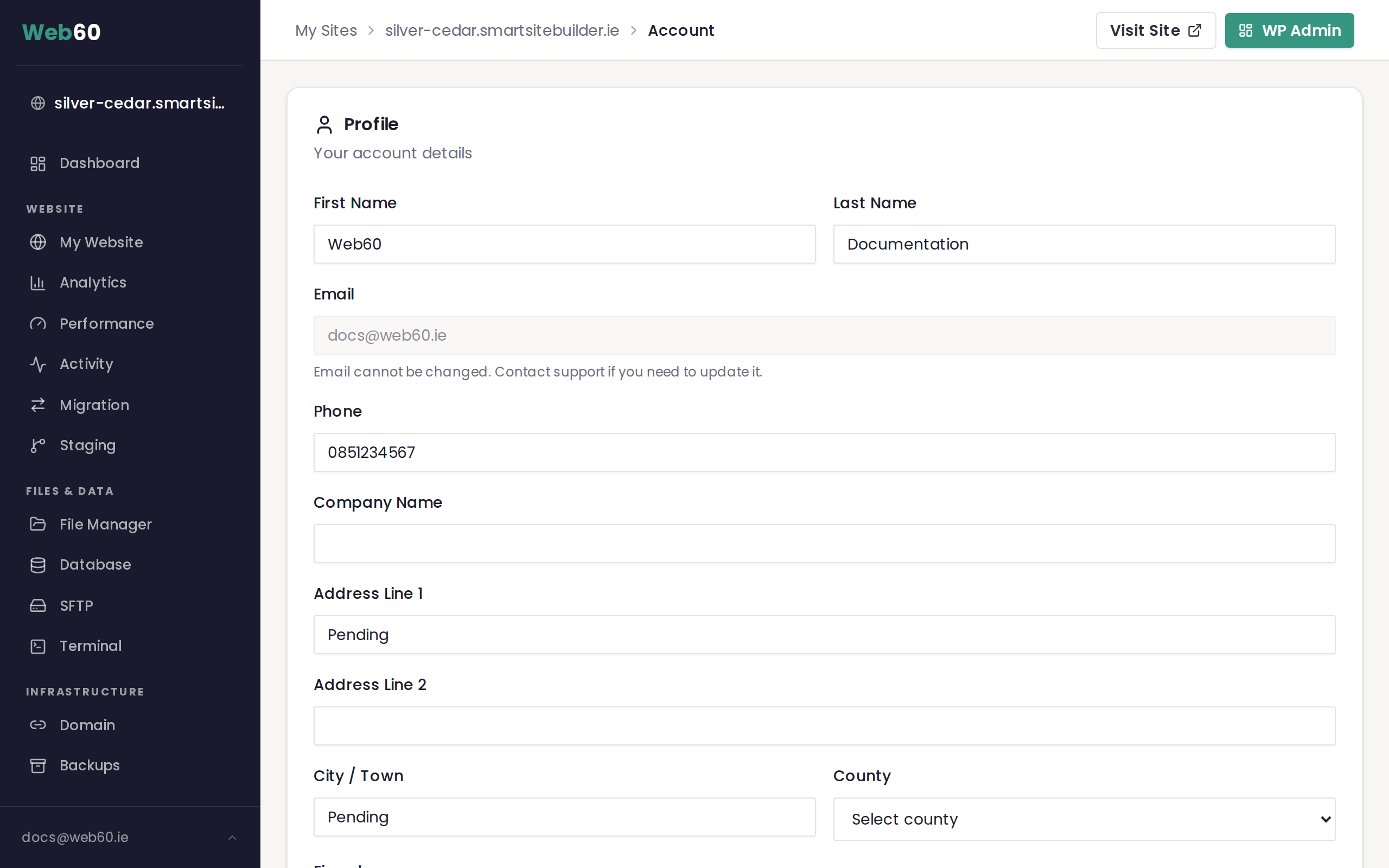
- Enter your current password in the first field. This is the password you used to sign in.
- Enter your new password in the second field.
- Enter your new password again in the confirmation field to make sure you typed it correctly.
- Click the "Change Password" button.
You will see a confirmation message that your password has been updated.
Password requirements
Your new password must meet two simple rules:
- At least 8 characters long
- At least one number (for example, 0 to 9)
A good password might be something like a phrase that is easy for you to remember but hard for others to guess. For example, "mydog2running" is much better than "password1".
Tips for a strong password
- Use a mix of letters and numbers, the longer the better.
- Avoid obvious choices like your name, "12345678", or "password".
- Do not reuse passwords from other websites.
- Write it down somewhere safe if you are worried about forgetting it.
If you have forgotten your current password
To change your password from the Account page, you need to know your current password. If you have forgotten it, there is an easy fix:
- Sign out of your Web60 dashboard.
- On the sign-in page, click "Forgot password?"
- Enter your email address and follow the instructions in the email you receive.
For full details, see our guide on how to sign in.
Need help?
If you are having trouble changing your password, visit our support page and we will get it sorted for you.
Frequently asked questions
What are the password requirements?
Your new password must be at least 8 characters long and include at least one number. For example, 'mypassword1' would meet the requirements.
What if I have forgotten my current password?
If you cannot remember your current password, sign out and use the 'Forgot password?' link on the sign-in page to reset it. See our guide on signing in for more details.
How often should I change my password?
There is no strict rule, but changing your password every few months is a good habit. You should also change it straight away if you think someone else may have access to your account.
Last updated: 15 March 2026