

Signing out of your Web60 dashboard ends your current session and returns you to the login page. This is good practice when you are finished working on your website, especially if you are using a shared or public computer.
How to sign out
- Look at the bottom-left corner of the sidebar. You will see your email address displayed there.
- Click your email address. A small menu will pop up.
- Click "Sign Out" at the bottom of the menu.
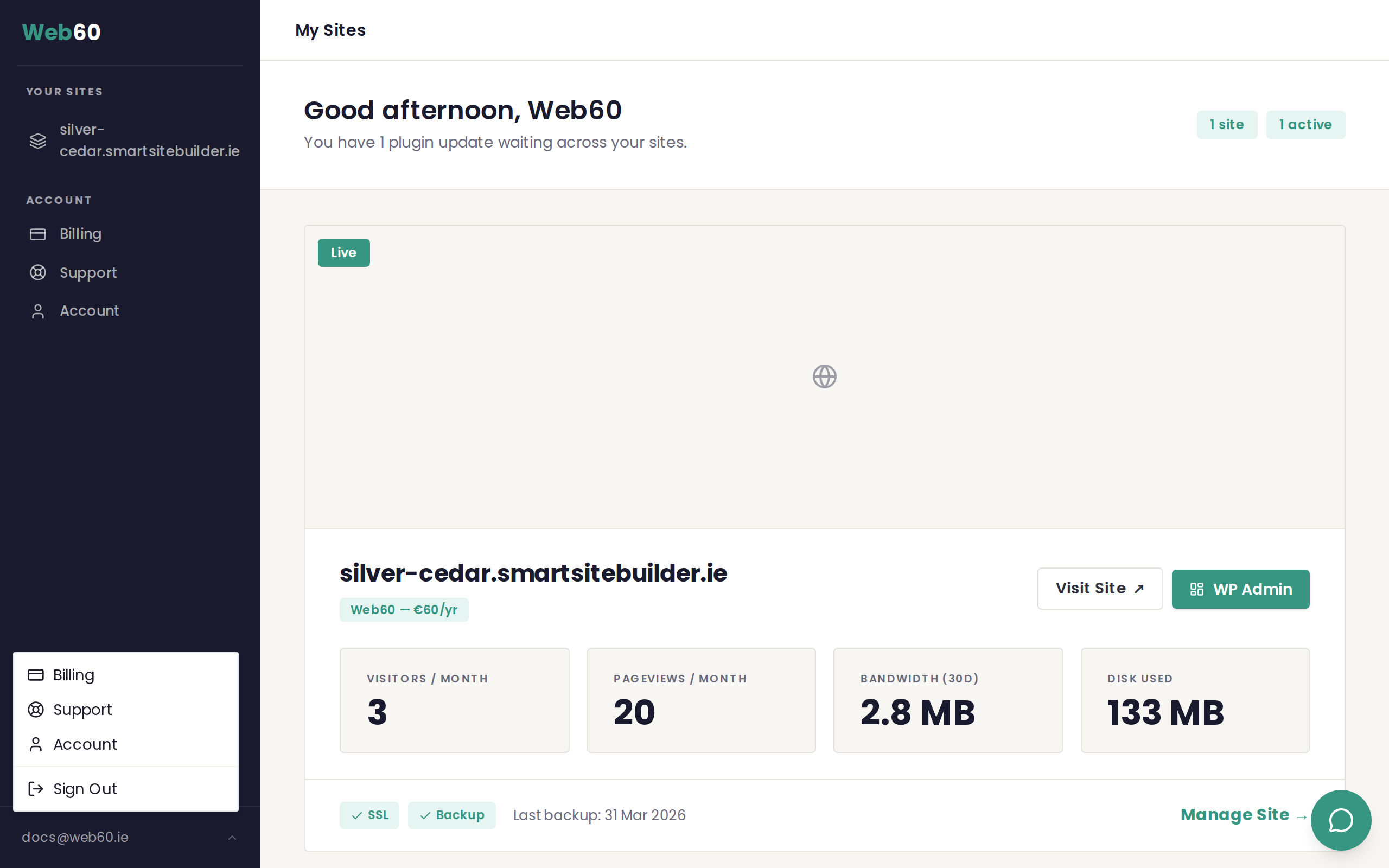
You will be taken back to the login page immediately.
When you should sign out
- On a shared or public computer — always sign out when you are done. This prevents the next person from accessing your website dashboard.
- On a borrowed device — if you signed in on a friend's or colleague's computer, sign out before handing it back.
- If you suspect your account may be compromised — signing out ends the session. Then change your password from the login page.
When you do not need to sign out
On your own personal computer or phone, you do not need to sign out every time. Your session will expire automatically after a period of inactivity, and you will be asked to sign in again the next time you visit.
Need help?
If you are having trouble signing out or cannot find the menu, visit our support page and we will help.
Frequently asked questions
Where is the sign out button?
Click your email address at the bottom-left corner of the sidebar. A menu will appear with a Sign Out option at the bottom.
Will I lose any changes if I sign out?
No. Any changes you have already saved will remain. Signing out simply ends your current session. You can sign back in at any time.
Do I need to sign out every time?
On your own personal computer, you do not need to sign out every time. Your session will expire on its own after a period of inactivity. However, you should always sign out if you are using a shared, public, or borrowed computer.
How do I sign back in after signing out?
Go to app.web60.ie and enter your email address and password on the login page. You will be taken straight back to your dashboard.
Last updated: 31 March 2026