

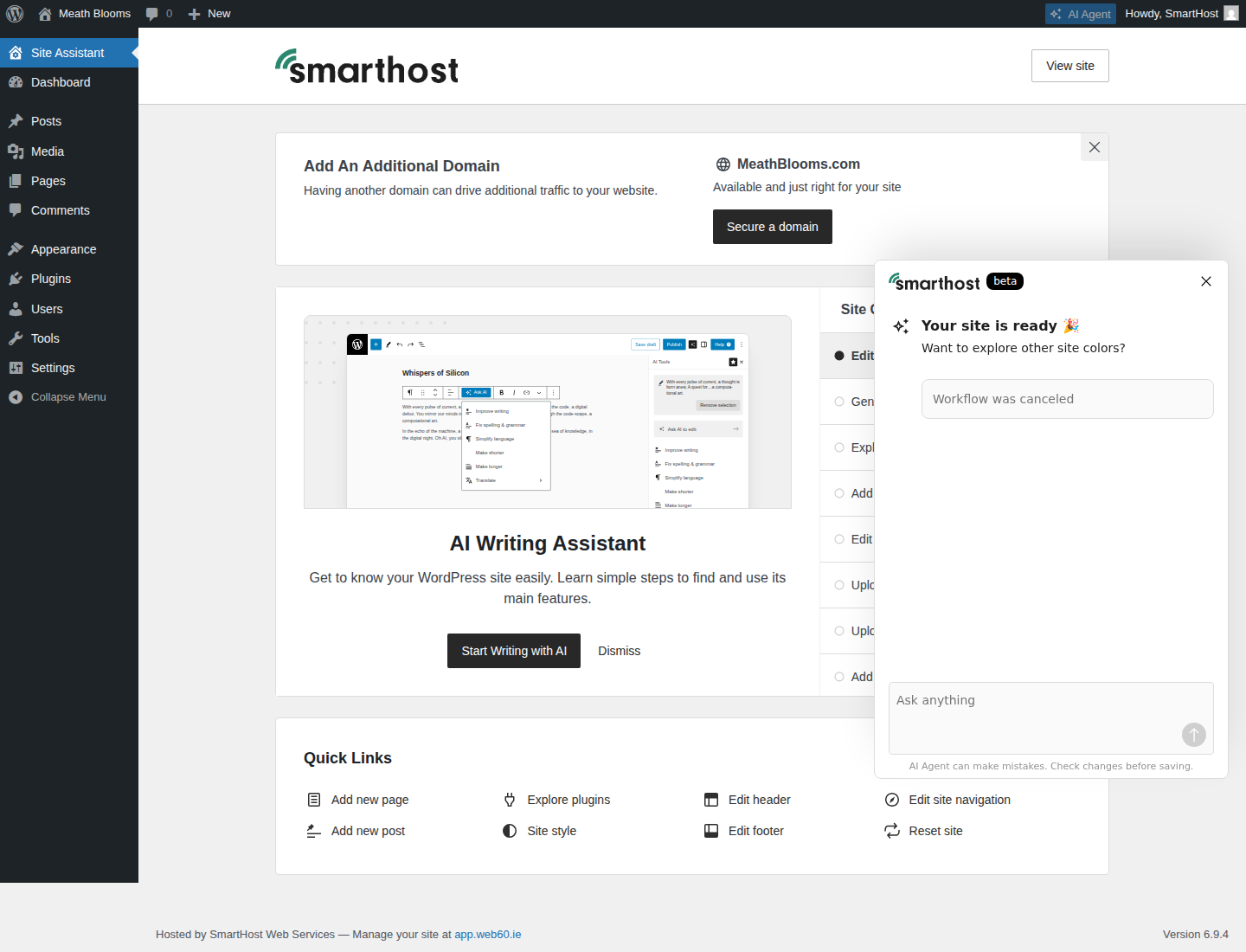
After the Web60 AI Site Builder creates your website, an AI assistant is available inside your WordPress dashboard to help you make ongoing changes.
What the AI assistant can do
- Suggest edits to your pages
- Help you write or rewrite content
- Recommend layout changes
- Answer questions about how to do things in WordPress
How to access it
- Open your WordPress editor from the My Website page in your Web60 dashboard.
- Look for the AI assistant option in the WordPress dashboard. It may appear as a sidebar panel, a chat icon, or under the Web60 menu.
- Type what you want to change in plain English. For example, "Add a testimonials section to my homepage" or "Rewrite the About page to sound more professional."
Tips
- Be specific in your requests. "Make the homepage better" is vague, but "Add a section about our opening hours" is clear.
- Review the AI's suggestions before accepting them. You are always in control.
- The AI assistant works best for content and layout changes. For design changes like colours and fonts, see changing your design.
Frequently asked questions
Is the AI assistant the same as the AI Site Builder?
No. The AI Site Builder creates your initial website. The AI assistant is a separate tool that helps you make changes to your site after it has been built.
Can the AI assistant break my site?
The AI assistant makes suggestions and edits within WordPress. You can always undo changes or restore a backup if something does not look right.
Last updated: 19 March 2026