
If your website's layout looks wrong, menus stopped working, or forms are no longer functioning after you enabled performance optimisation, a file combining setting is most likely the cause. This guide walks you through fixing it step by step.
What went wrong
Web60's performance settings include options to combine your website's style files and script files into fewer files. This usually makes websites load faster, but some plugins and themes include files that do not work correctly when combined with others.
Common symptoms include:
- Navigation menus not opening or closing
- Contact forms not submitting
- Sliders or image galleries not working
- Page layout looking wrong or broken
- Dropdown menus disappearing
- Interactive elements becoming unresponsive
How to fix it
Work through these steps in order. After each step, reload your website to check if the problem is resolved.
Step 1: Turn off Combine JavaScript
JavaScript combining is the most common cause of these problems. Disable it first.
- Sign in to your Web60 dashboard at app.web60.ie/login.
- Click My Website in the sidebar.
- Go to Advanced Settings, then Performance.
- Find Combine JavaScript and turn it off.
- Save the change.
- Reload your website and check if the problem is fixed.
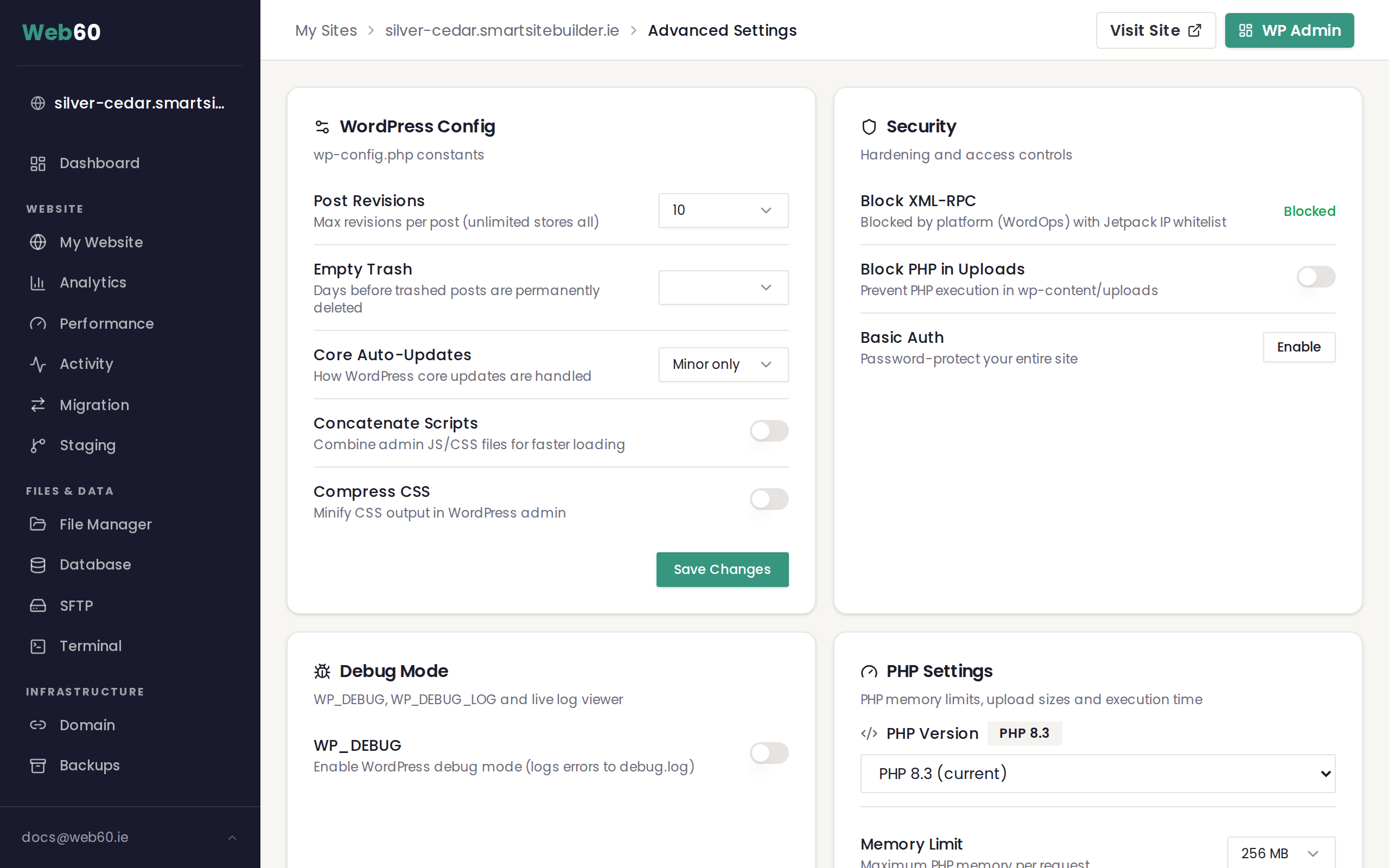
If this solves the issue, you can leave all other performance settings enabled. Only JavaScript combining was the problem.
Step 2: Turn off Combine CSS
If the problem is still there after disabling JavaScript combining, the style file combining may be the cause.
- Go back to Advanced Settings, then Performance.
- Find Combine CSS and turn it off.
- Save the change.
- Reload your website and check again.
Step 3: Clear your cache
After making any changes to performance settings, always clear your website's cache to make sure you are seeing the latest version.
- Go to My Website in your Web60 dashboard.
- Click Clear Cache.
- Wait a minute, then reload your website.
Step 4: Restore from a backup (last resort)
If your website is still broken after turning off both combining settings, you can restore it to how it was before you made the changes.
- Go to Backups in your Web60 dashboard.
- Find the most recent backup from before you enabled the performance settings.
- Click Restore and follow the prompts.
For more details, see our guide on restoring a backup.
Going forward
Once your website is working again, you can try re-enabling performance settings one at a time. Enable one setting, clear the cache, and test your website thoroughly before enabling the next. This way you will know exactly which setting causes a conflict if one occurs.
Need help?
If you are unsure which setting is causing the problem or need help restoring your website, visit our support page and we will fix it for you.
Frequently asked questions
Why did performance optimisation break my website?
Some plugins and themes include scripts that do not work correctly when combined into a single file. This is most common with menu plugins, form plugins, and page builders. Turning off the Combine setting for the affected file type usually fixes the issue.
Should I turn off all performance settings?
No. Start by turning off only the setting that caused the problem, usually Combine JavaScript. Leave the other performance settings on, as they still help your website load faster.
Can I restore my website if nothing else works?
Yes. If you cannot identify which setting caused the problem, you can restore your website from a backup. Go to your Web60 dashboard, navigate to Backups, and restore the most recent backup from before you made the changes.
Last updated: 16 March 2026