

Your Web60 dashboard includes a set of WordPress configuration options that control how your site handles revisions, trash, updates, and admin performance. You will find these under Advanced Settings > WordPress Config on your site's management page.
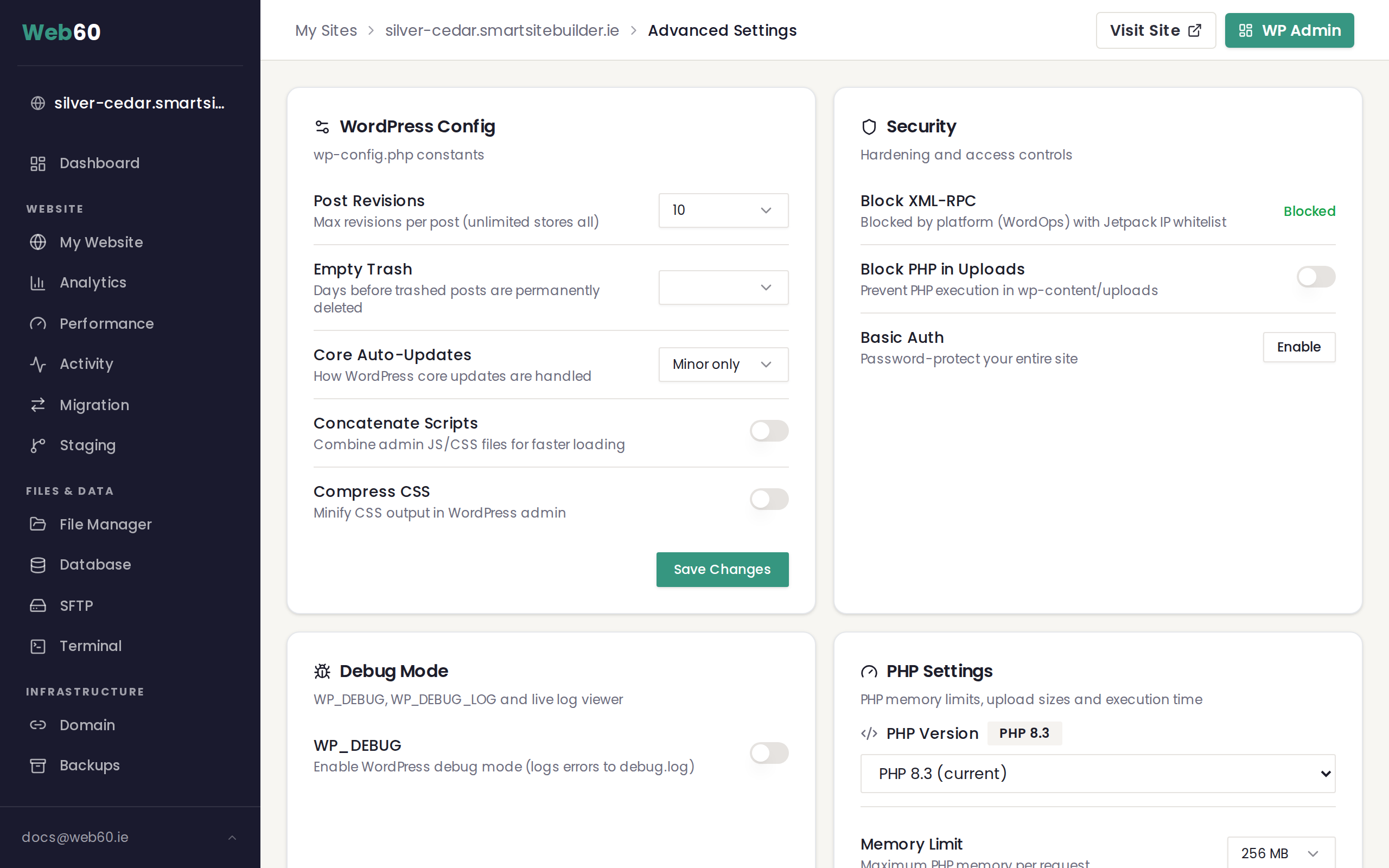
This article walks through each setting so you can make informed choices for your site.
Post Revisions
Every time you save a page or post in WordPress, a revision is stored in your database. Over time, these revisions can add up and slow things down.
The Post Revisions setting lets you control how many revisions WordPress keeps per page or post. Your options are:
- Unlimited (keeps every revision forever)
- Disabled (no revisions are stored at all)
- 3, 5, 10, or 25 revisions per post
Recommendation: Set this to 5 or 10. This gives you enough history to roll back mistakes without letting your database grow unnecessarily. For a deeper look at how revisions work and how to manage them, see What are post revisions and how to manage them.
Empty Trash
When you delete a page, post, or comment in WordPress, it goes to the Trash rather than being permanently removed. The Empty Trash setting controls how long items stay in the Trash before they are deleted for good.
Your options are:
- Disabled (items remain in the Trash until you manually empty it)
- 7 days
- 14 days
- 30 days
Recommendation: Set this to 30 days. This gives you a generous window to recover accidentally deleted content while keeping your database tidy.
Core Auto-Updates
WordPress regularly releases updates that include security patches and bug fixes. The Core Auto-Updates setting controls which updates are applied automatically.
Your options are:
- Minor only (security and maintenance releases are applied automatically)
- All updates (major version upgrades are also applied automatically)
- Disabled (no automatic updates at all)
Recommendation: Choose Minor only. This ensures your site always receives critical security patches without risking unexpected changes from major version upgrades. You can then apply major updates manually when you are ready.
Note: Auto-updates are always disabled on staging sites, so you can test updates safely before applying them to your live site.
Concatenate Scripts
This toggle controls whether WordPress combines its admin JavaScript and CSS files into fewer requests. When enabled, your WordPress admin area may load slightly faster because the browser downloads fewer individual files.
This setting only affects the admin area of your WordPress site. It does not change anything for your visitors. It is safe to enable and is a good default for most sites.
Compress CSS
This toggle controls whether WordPress minifies (compresses) the CSS used in your admin area. Enabling it reduces file sizes slightly, which can improve admin page load times.
Like Concatenate Scripts, this only affects the admin interface and is safe to enable on any site.
Frequently asked questions
Will changing these settings cause downtime?
No. All WordPress Config changes take effect immediately without any downtime or restarts. Your visitors will not notice any interruption.
Can I change these settings on a staging site?
Yes, with one exception. Core Auto-Updates are always disabled on staging sites to prevent unintended updates during testing. All other settings work the same way on both live and staging sites.
What happens if I set Post Revisions to Disabled?
WordPress will stop saving new revisions for pages and posts. Any existing revisions will remain in the database. If you want to remove old revisions, see Optimising your database.
Need help?
If you have questions about any of these settings or need guidance on the best configuration for your site, contact our support team.
Frequently asked questions
Will changing these settings cause downtime?
No. All WordPress Config changes take effect immediately without any downtime or restarts. Your visitors will not notice any interruption.
Can I change these settings on a staging site?
Yes, with one exception. Core Auto-Updates are always disabled on staging sites to prevent unintended updates during testing. All other settings work the same way on both live and staging sites.
What happens if I set Post Revisions to Disabled?
WordPress will stop saving new revisions for pages and posts. Any existing revisions will remain in the database until you clean them up manually.
Last updated: 16 March 2026