

Post revisions are automatic snapshots that WordPress saves every time you update a page or post. They let you compare changes and restore an earlier version if something goes wrong. While revisions are useful, they can build up over time and affect your database performance if left unchecked.
How revisions work
Each time you click Save Draft, Update, or Publish in the WordPress editor, a new revision is created. WordPress stores the full content of the page or post at that point in time, along with a timestamp and the name of the person who made the change.
This means a single blog post that has been edited 50 times will have 50 separate copies of its content stored in the database.
Why unlimited revisions can be a problem
By default, many WordPress installations keep every revision forever. On a busy site with dozens of pages and regular updates, this can result in thousands of revision records in your database. A larger database takes longer to query, which can slow down your site and your admin experience.
Setting a revision limit
You can control how many revisions WordPress keeps for each page or post from your Web60 dashboard:
- Open your Web60 dashboard and select the site you want to manage.
- Go to Advanced Settings.
- Find the WordPress Config card.
- Locate the Post Revisions dropdown.
- Choose your preferred limit: Disabled, 3, 5, 10, 25, or Unlimited.
- Save your changes.
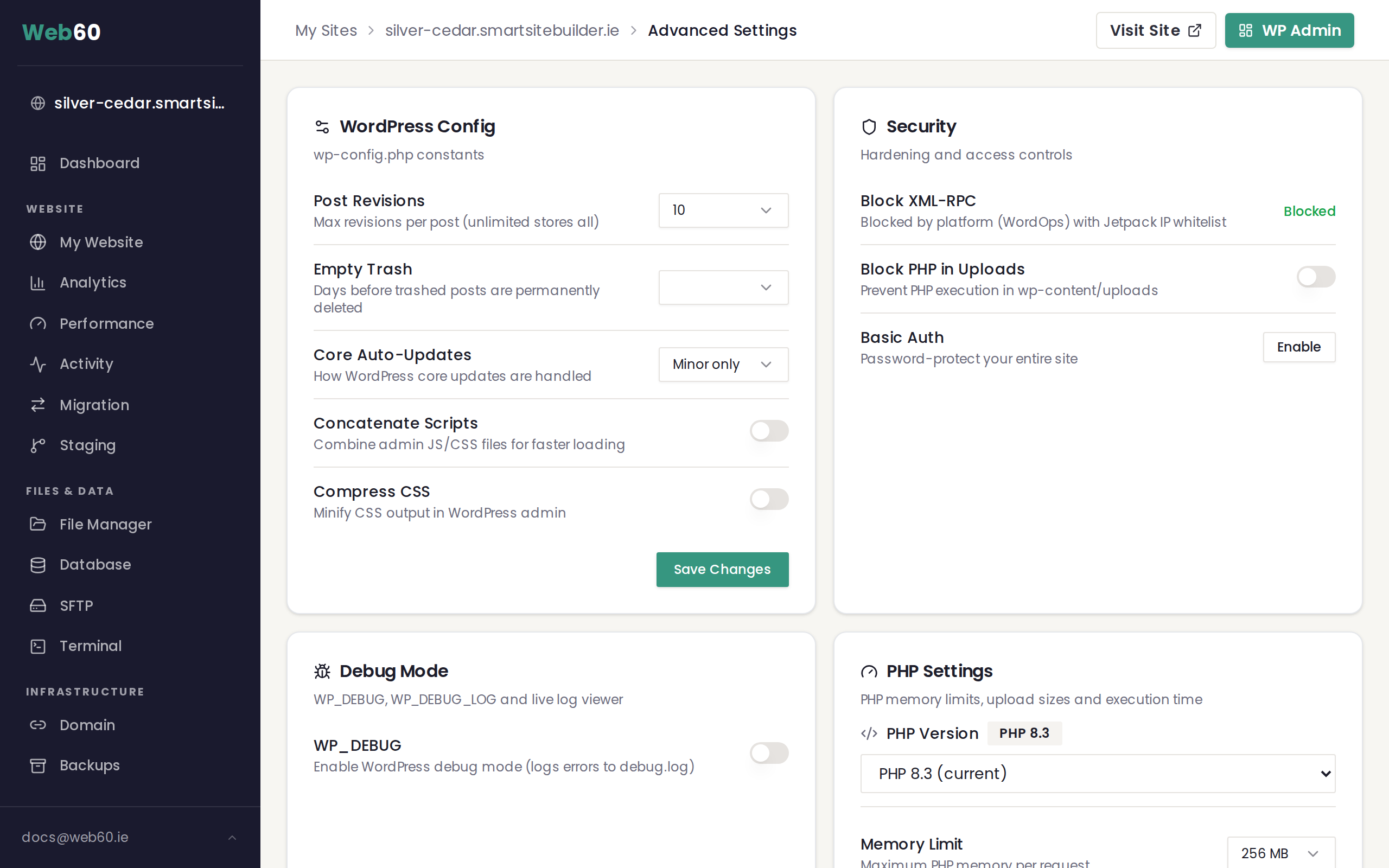
Recommendation: A limit of 5 or 10 strikes a good balance. You have enough history to undo mistakes, but your database stays lean. For more detail on all the options in this card, see Understanding WordPress configuration settings.
What happens to existing revisions when you lower the limit
Changing the revision limit only affects future saves. If you lower the limit from Unlimited to 5, WordPress will not automatically delete the old revisions already stored in your database. It will simply stop creating new ones once the limit is reached for each post.
To clean up existing revisions, see Optimising your database.
Viewing and restoring revisions in the editor
You can access revisions directly from the WordPress editor:
- Open any page or post for editing.
- In the settings sidebar, look for the Revisions section (it shows the number of saved revisions).
- Click on it to open the revision comparison screen.
- Use the slider or the Previous and Next buttons to step through revisions.
- Click Restore This Revision to revert the content.
Restoring a revision does not delete any other revisions. It simply creates a new revision with the restored content.
Frequently asked questions
Should I disable revisions entirely?
Disabling revisions saves database space, but it means you cannot undo changes after saving. If you are the only person editing your site and you are comfortable without a safety net, disabling revisions is fine. Otherwise, keeping a small limit like 5 is a better choice.
Do revisions affect my site speed for visitors?
Revisions are only stored in the database. They are not loaded on your public pages. However, a very large database can slow down general query performance, which may indirectly affect page load times.
Will reducing the limit delete my existing revisions?
No. Lowering the limit only prevents new revisions from being created beyond that number. Existing revisions remain in the database until you clean them up manually or use a database optimisation tool.
Need help?
If you need assistance managing your post revisions or cleaning up your database, contact our support team.
Frequently asked questions
Should I disable revisions entirely?
Disabling revisions saves database space, but it means you cannot undo changes after saving. Keeping a small limit like 5 is a better choice unless you are comfortable without a safety net.
Do revisions affect my site speed for visitors?
Revisions are only stored in the database and are not loaded on your public pages. However, a very large database can slow down general query performance, which may indirectly affect page load times.
Will reducing the limit delete my existing revisions?
No. Lowering the limit only prevents new revisions from being created beyond that number. Existing revisions remain in the database until you clean them up manually or use a database optimisation tool.
Last updated: 16 March 2026