
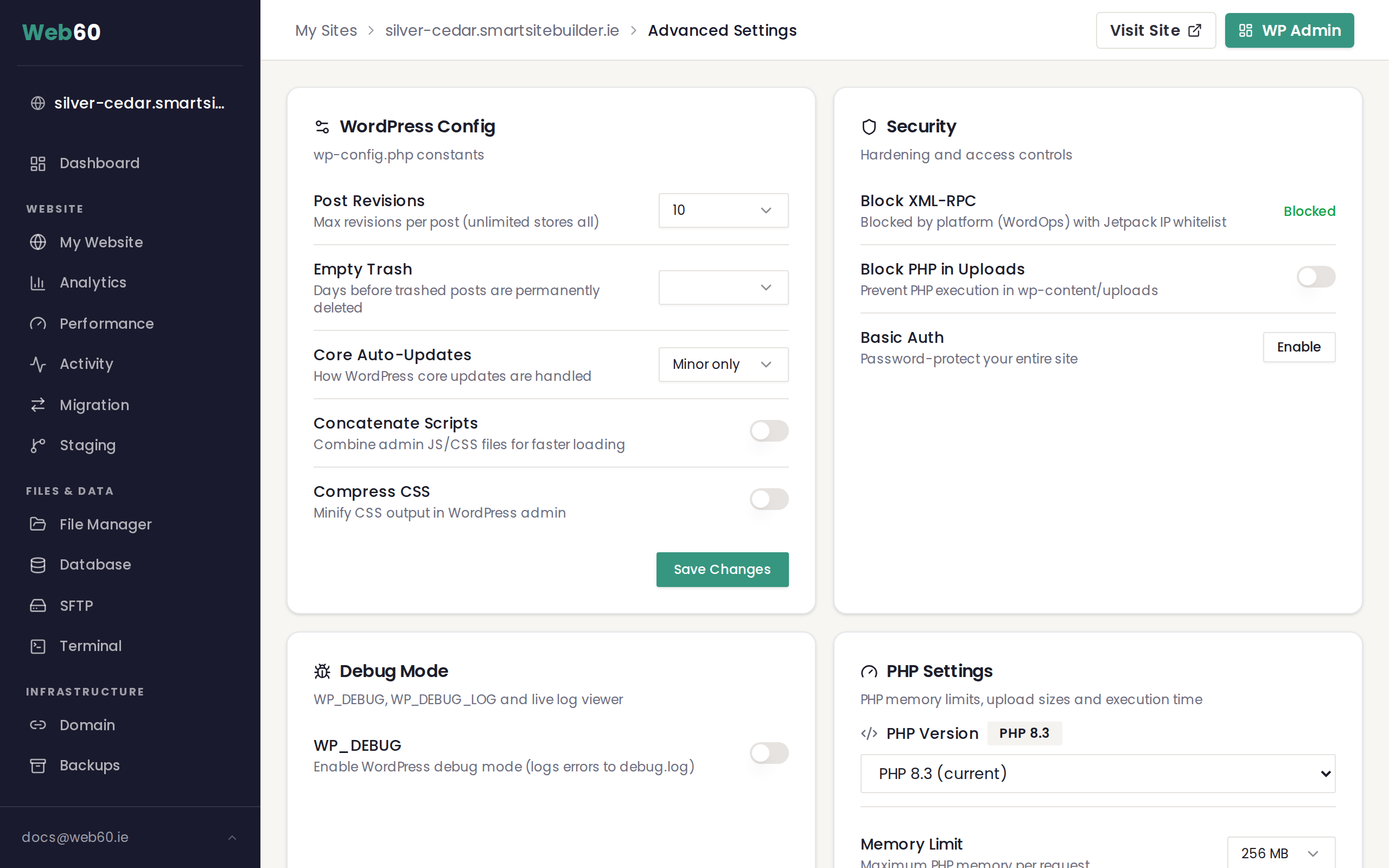
Your Web60 dashboard includes a built-in performance optimisation tool that can reduce page load times by minifying and combining your site's code. You will find this under Advanced Settings > Performance Optimization on your site's management page.
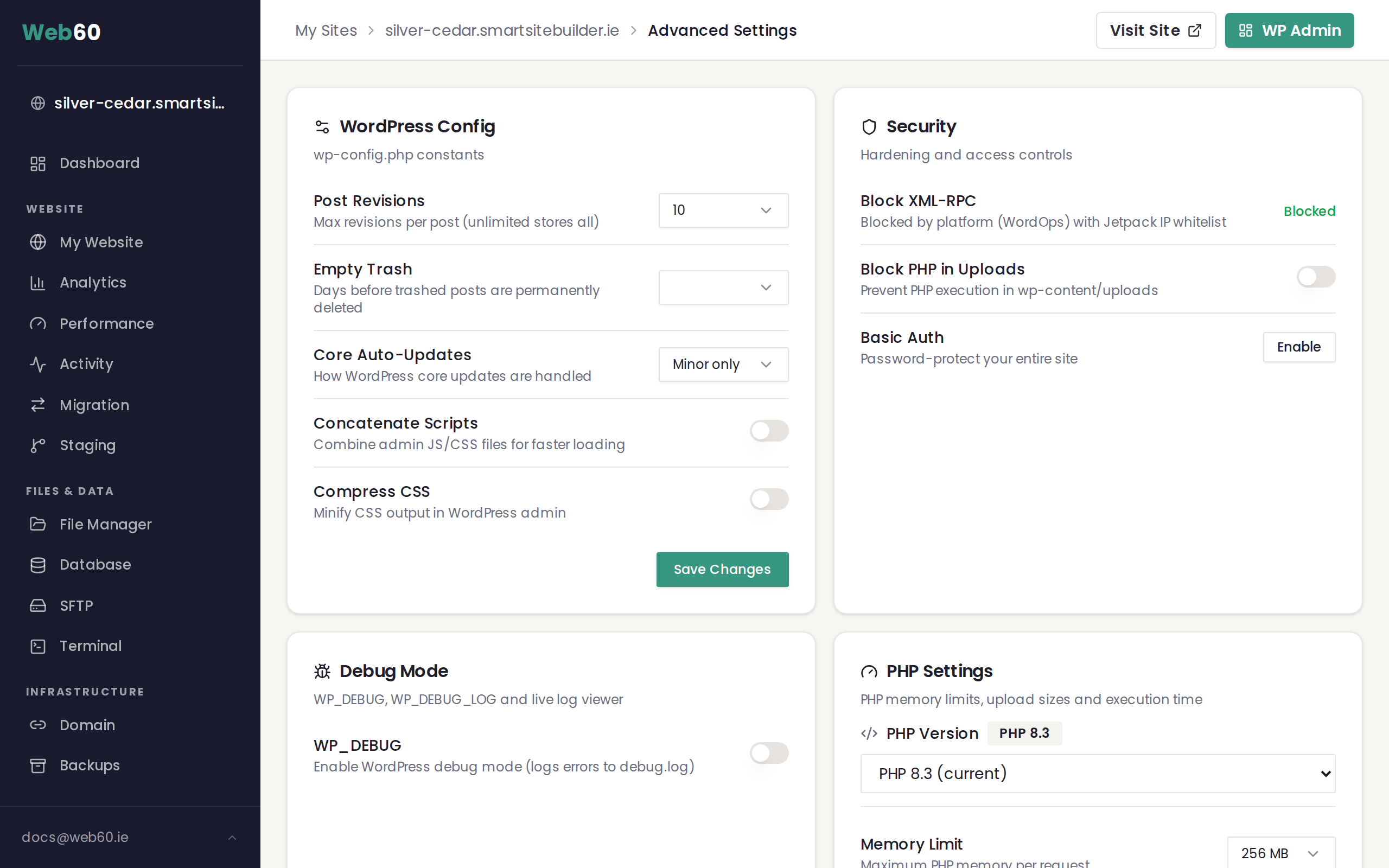
When you enable this feature, a background job installs and configures the optimisation plugin automatically. You can track its progress directly in your dashboard.
Enabling performance optimisation
- Open your Web60 dashboard and select the site you want to manage.
- Go to Advanced Settings.
- Find the Performance Optimization card.
- Toggle Enable Optimization to on.
- Wait for the background job to complete (you will see a progress indicator).
Once the installation finishes, several optimisation options become available.
What each option does
HTML Minification (low risk)
Removes unnecessary whitespace and comments from your HTML output. This makes your pages slightly smaller, which helps them load faster. This is safe to enable on all sites.
CSS Minification (low risk)
Compresses your CSS files by removing whitespace, comments, and redundant code. The visual appearance of your site stays exactly the same. Safe for most sites.
JavaScript Minification (low risk)
Compresses your JavaScript files in the same way. This can reduce file sizes noticeably, especially on sites with many plugins. Safe for most sites.
Combine CSS (medium risk)
Merges multiple CSS files into a single file, reducing the number of requests your browser needs to make. This can improve load times, but some themes and plugins rely on CSS files loading in a specific order.
Important: After enabling this option, visit several pages on your site and check that layouts, colours, and fonts still look correct. If anything appears broken, disable this option. See What to do if performance optimisation broke your site for troubleshooting steps.
Combine JavaScript (medium risk)
Merges multiple JavaScript files into a single file. Like Combine CSS, this reduces requests but can occasionally cause conflicts with plugins that depend on scripts loading in a particular sequence.
Important: After enabling this option, test interactive features on your site such as forms, menus, sliders, and popups. If anything stops working, disable this option.
Inline Critical CSS
Identifies the CSS needed to render the visible portion of each page and embeds it directly in the HTML. This allows the page to display immediately while the remaining CSS loads in the background.
Lazy-Load Images (low risk)
Delays loading images that are not yet visible on screen. As visitors scroll down the page, images load just before they come into view. This can significantly improve initial page load times, especially on image-heavy pages. Safe for most sites.
Recommended approach
Start with the low-risk options: HTML, CSS, and JavaScript minification plus lazy-load images. These provide noticeable improvements with very little chance of issues.
If you want to go further, enable Combine CSS and Combine JavaScript one at a time, testing your site thoroughly after each change. This way, if something breaks, you know exactly which setting caused it.
Frequently asked questions
Will enabling optimisation cause any downtime?
No. The installation runs as a background job and your site remains online throughout. Visitors will not notice any interruption.
Can I undo these changes?
Yes. You can toggle any individual option off at any time. If you disable the main Enable Optimization toggle, all optimisations are removed and your site returns to its previous state.
How do I know if the optimisation is working?
After enabling the settings, try loading your site in a private or incognito browser window. You should notice faster page loads. You can also use the performance tools in your Web60 dashboard to track improvements over time. For help reading those results, see Understanding site stats.
Need help?
If you are unsure which optimisation settings to enable or your site is not behaving as expected after making changes, contact our support team.
Frequently asked questions
Will enabling optimisation cause any downtime?
No. The installation runs as a background job and your site remains online throughout. Visitors will not notice any interruption.
Can I undo these changes?
Yes. You can toggle any individual option off at any time. If you disable the main Enable Optimization toggle, all optimisations are removed and your site returns to its previous state.
How do I know if the optimisation is working?
After enabling the settings, try loading your site in a private or incognito browser window. You should notice faster page loads. You can also use the performance tools in your Web60 dashboard to track improvements over time.
Last updated: 16 March 2026